
Backup jobs
Run your own backup command against a volume or a project’s volumes, on a schedule or on demand, and keep a record of each run. To save Docker Commander’s own configuration instead, see the recovery bundle.
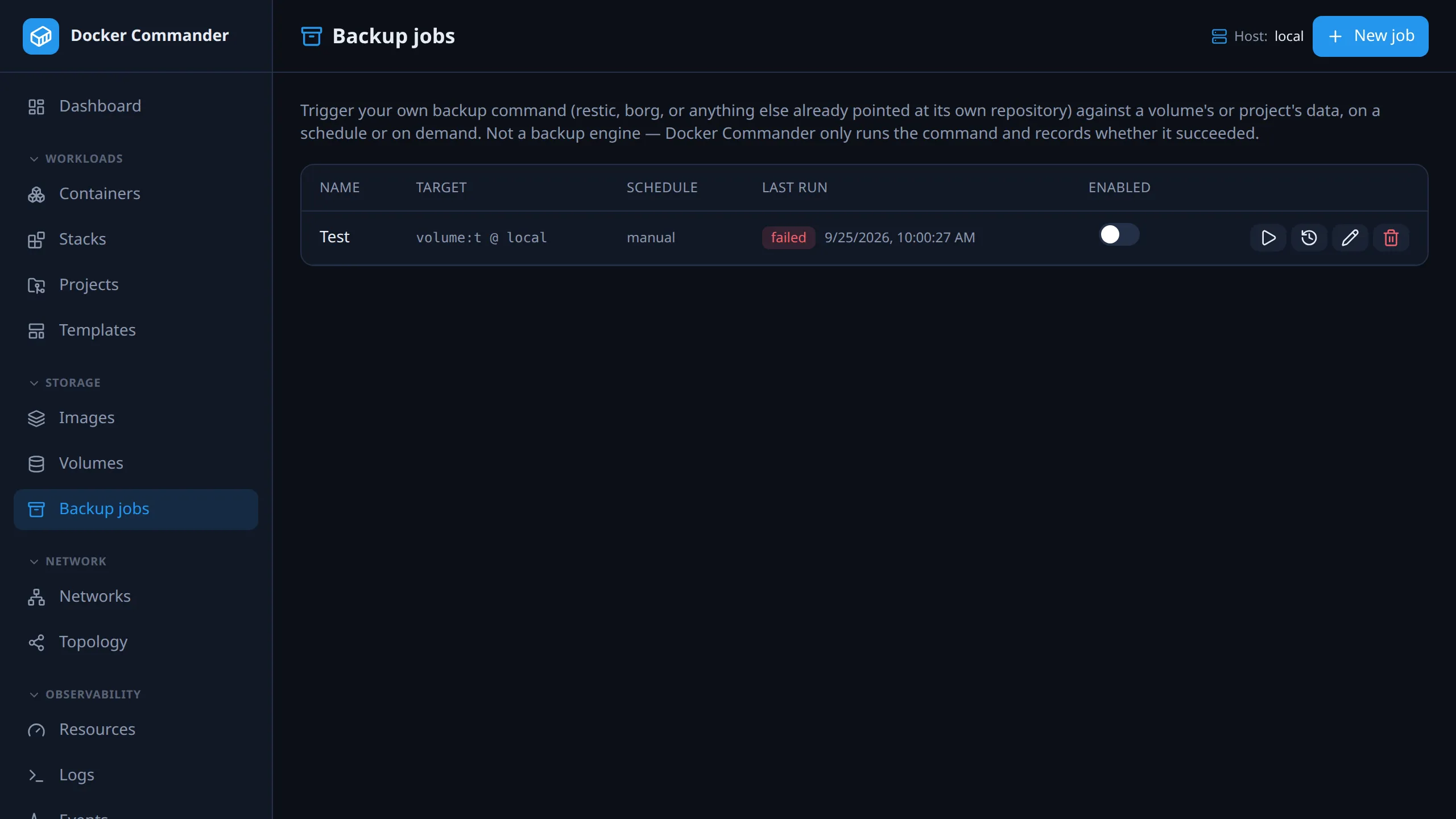
Find it under Storage → Backup jobs. Admin only.
Docker Commander is not a backup engine. You bring the tool (restic, borg,
rsync, a script) in a container image, configured with its own destination.
Docker Commander mounts the data, runs the command and records the result.
Common tasks
Section titled “Common tasks”Nightly restic backup of a volume. Click New job, choose Single
volume, pick the host and type the volume name. Keep the pre-filled image
restic/restic, set the command to restic backup --host myapp /data, and the
schedule to 1440 minutes. Put RESTIC_REPOSITORY, RESTIC_PASSWORD and the
storage credentials in Environment. Then press Run now once and read the
output.
- restic does not create the repository. If it is new, set the command to
restic initfor one Run now, then switch it to the backup command. - Each run is a new container with a random hostname.
--hostkeeps the snapshots under one name, so restic finds the previous snapshot.
Back up a whole project. Choose Project (all its volumes). Every named
volume of the project is mounted under /data/<full volume name> (for example
/data/myproj_db), so restic backup /data covers all of them.
See why the last run failed. Hover the red failed badge for the error, or click it to open Run history with the full output and exit code.
Rotate credentials. Edit the job and paste the complete new environment. It replaces the old one. A blank box keeps the stored values.
Check a restore. Restore with your tool, then open the volume’s file browser to see what came back.
How a run works
Section titled “How a run works”Each run starts a short-lived helper container on the job’s host:
- The image is pulled if the host doesn’t have it.
- The container starts with the volume(s) mounted and your environment set, and
runs
sh -c "<command>". This replaces the image’s own entrypoint, so the image needssh.restic/restichas it. - Docker Commander waits for the exit, saves stdout and stderr, and removes the container, also after a failure or timeout.
| Scope | Runs on | Mounted |
|---|---|---|
| Single volume | the host you pick (local or remote) |
the volume at /data |
| Project (all its volumes) | the project’s host | each named volume Compose created for the project, at /data/<full volume name> |
A project’s volumes are found by the com.docker.compose.project label. The
host is looked up on every run, so a moved project is followed. A project with
no named volumes fails the run.
A run succeeds only on exit code 0. It also fails when the command can’t start: image pull failure, helper start failure or a target that can’t be found. All of these show in the run history.
Creating a job
Section titled “Creating a job”New job asks for:
- Job name.
- Scope: Single volume (host and volume name) or Project (all its volumes).
- Schedule (minutes, 0 = manual only).
- Helper image, pre-filled with
restic/restic. - Command (runs as
sh -c), for examplerestic backup /data. - Environment: one
KEY=VALUEper line, for credentials. Lines without=are ignored.
New jobs start enabled.
The environment is write-only
Section titled “The environment is write-only”It is encrypted at rest and never returned by the list, the edit form or the API. When editing:
- A blank box keeps the stored values.
- New lines replace the whole stored environment.
- Clear stored environment deletes it. A blank box does not.
Schedule and Run now
Section titled “Schedule and Run now”Schedule is an interval in minutes, not a cron expression. 0 means manual
only.
- The scheduler checks once a minute. A job is due when it is enabled, has an interval, and has never run or last finished at least one interval ago. A failed run counts as a run. Due jobs run one after another.
- Run now (play button) runs the job at once, even when disabled. Closing the tab doesn’t cancel it. If it fails, the run history opens by itself.
- Enabled switches scheduled runs on and off.
- A run is stopped after 30 minutes, image pull included. It is recorded as failed with a timeout error and no output.
- At most two helpers run at once across the instance. A third fails with “too many backup jobs running — try again shortly”.
The job list and run history
Section titled “The job list and run history”Each row shows the name, the target (volume:<name> @ <host> or
project:<name>), the schedule, the last run, the enabled toggle, and Run
now, Run history & logs, Edit and Delete. The last-run badge reads
never run, ok or failed; ok and failed open the run
history. The same status shows as a backup: … badge on the volume’s row in
Volumes and on the project’s card in Projects.
Run history lists each run with result, start time, duration, trigger and
exit code. The newest is expanded; click another to expand it. An expanded run
shows the error (for example exit code 2, a pull failure or a timeout) and the
output, or “The command printed nothing”.
- Trigger is
scheduled, orby <username>for Run now. - A run under one second shows no duration.
What is stored:
- The first 256 KiB of output per run. The rest is dropped.
- The latest 200 runs per job. The dialog lists the newest 50.
- Deleting a job deletes its history.
Output is stored in Docker Commander’s database and is not redacted. Don’t let the command print secrets.
Access and audit
Section titled “Access and audit”Backup jobs are admin-only, on the page and on every /api/backup-jobs
endpoint. They can’t be granted to other roles.
The audit log records backup_job.create, backup_job.update,
backup_job.enable, backup_job.disable, backup_job.delete and
backup_job.run (a Run now whose command ran, whatever its exit code). A
Run now that ends in an error (pull, helper start, timeout, too many jobs
running) and scheduled runs are not audited; they are in the run history. Environment values are never audited.
Technical notes
Section titled “Technical notes”- The helper is labelled
dc.backupjob=1. It has no extra privileges and no host bind mounts. Volumes are not mounted read-only. - The volume name isn’t checked on save. Docker creates a missing volume on mount, so a typo backs up an empty volume. Copy the name from Volumes.
- Backup jobs cover volume data. The recovery bundle covers configuration and has no volume data.