
Dashboard
A one-screen summary of the selected host, the one chosen in the sidebar. For full, searchable lists go to Resources or Containers.
Common tasks
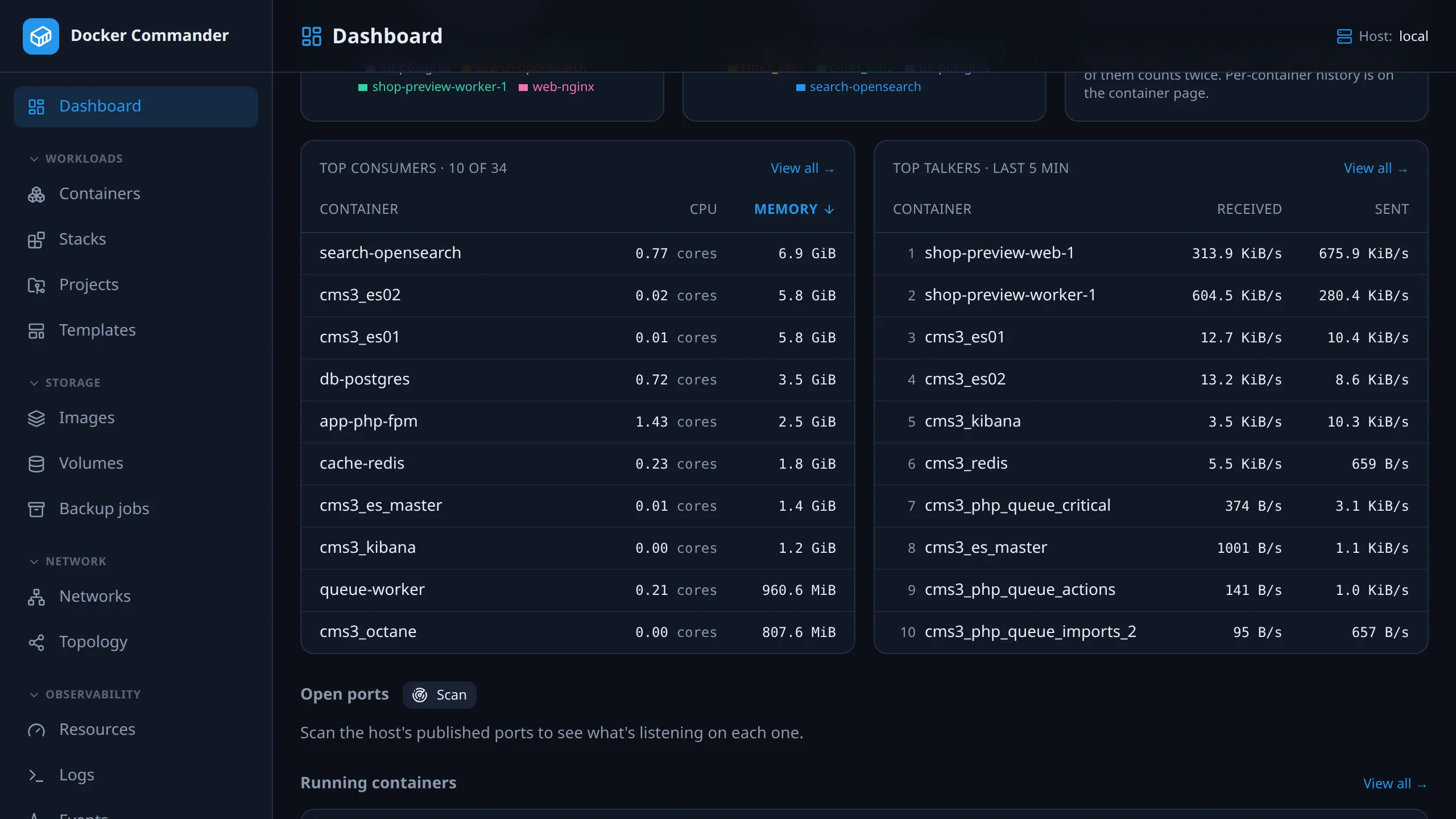
Section titled “Common tasks”Find what’s eating memory or CPU. Look at Top consumers. It sorts by memory by default; click the CPU header to sort by CPU instead. View all → opens Resources with every running container.
Find who is using the network. Top talkers ranks containers by their average traffic over the last 5 minutes, with received and sent in separate columns. For a longer window, or to rank by received or sent alone, click View all →.
The disk is filling up. Check the Disk usage tiles, then open
Resources → Disk to see which images, containers and volumes
are largest and what a prune would free. Prune dangling images in
Images and unused volumes in Volumes. There is no
build-cache prune in the app; run docker builder prune on the host.
What is listening on this host’s ports? Click Scan under Open ports (Rescan once there is a result). It connects to every published port and identifies the service. The result is remembered per host in your browser, so it is still there next time. Ports of containers that have stopped since drop out of the list.
Restart a container quickly. Use the row buttons in Running containers: Restart, Pause, Stop or Kill. Kill asks first.
Host facts
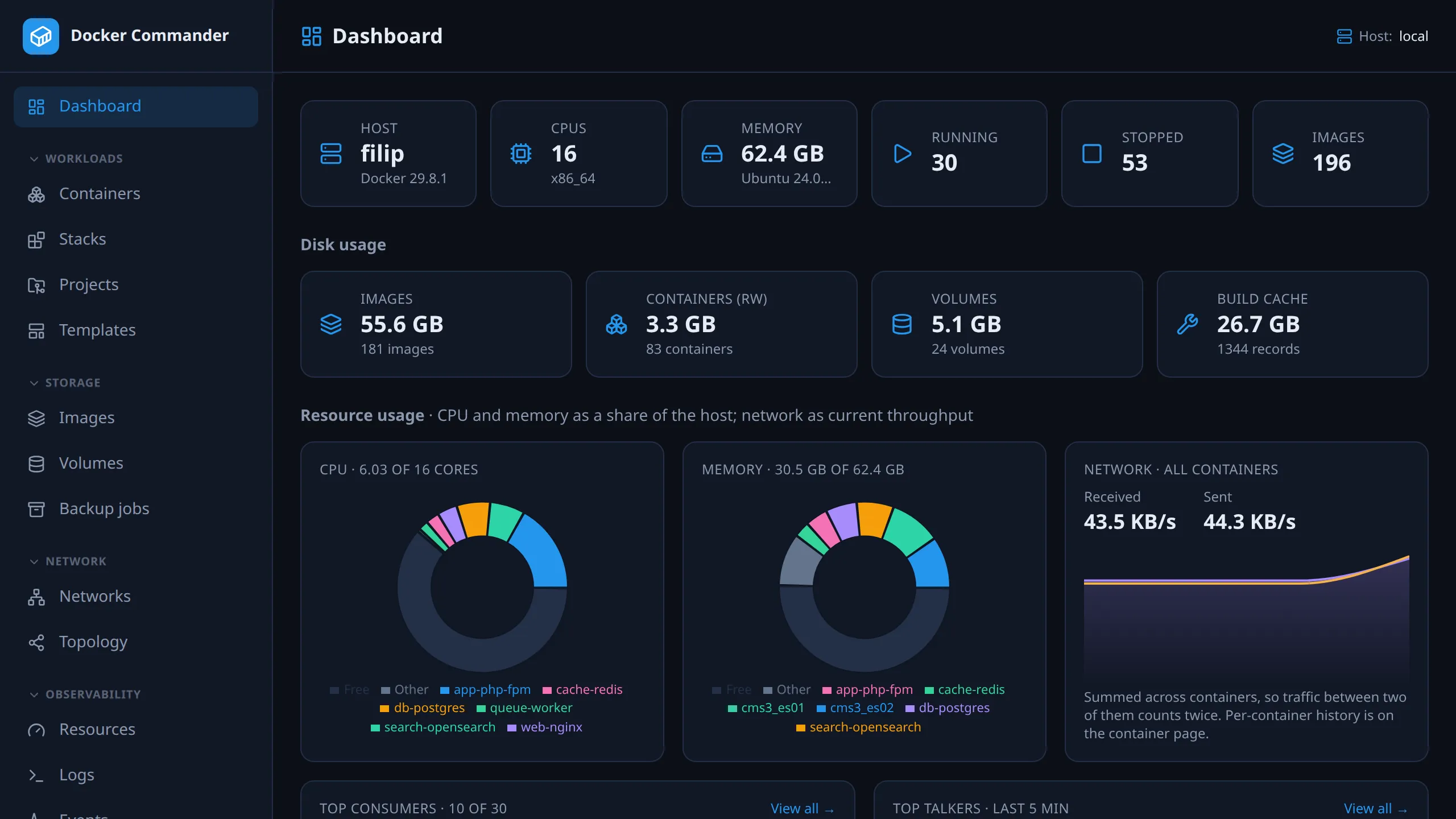
Section titled “Host facts”The top row shows hostname and Docker version, CPU count and architecture, total memory and OS, and the number of running and stopped containers and images.
Disk usage
Section titled “Disk usage”Four tiles from docker system df. Each shows a size and a count.
| Tile | Shows |
|---|---|
| Images | The daemon’s image total and the number of images. Shared layers are counted once. |
| Containers (rw) | The writable layers of all containers, and the container count. |
| Volumes | The size of volumes with a known size, and the volume count. |
| Build cache | The cache size and its number of records. Records the daemon marks as shared are left out of the size but still counted. |
Resource usage
Section titled “Resource usage”The two pie charts show how the running containers divide up the host’s CPU and memory. Each slice is what that container uses right now, as a share of the whole machine. The unused rest is Free. The busiest containers get their own slice and the rest are grouped as Other. CPU share is relative to all cores (100% is the entire host). Memory share is usage divided by total RAM. Remote hosts work the same, over the Docker API.
Network · all containers is the host-wide RX/TX rate right now, with a short rolling trend beside it. It is summed across running containers, so container-to-container traffic counts twice: once as one side’s TX and once as the other’s RX. Per-container series are on the container detail.
Top consumers
Section titled “Top consumers”The running containers that use the most, with CPU (cores in use) and Memory (bytes in use). Click a column header to re-sort. The default is memory, largest first. It shows the top 10, and the title says 10 of N when there are more. View all → opens Resources. Click a name to open the container’s detail page.
Top talkers
Section titled “Top talkers”The busiest containers by network throughput, next to Top consumers. The figure is the average rate over the last 5 minutes, by total (received + sent). It shows the top 10 and refetches every 15 seconds. View all → opens Resources → Network, with a bigger table, a window selector (5 min, 15 min, 1 hour), a metric selector (total, received, sent) and a name filter.
Open ports
Section titled “Open ports”A host-wide map of every published port across the running containers. Scan connects to each one and identifies what’s really listening (SSH, HTTP(S), SMTP, Redis, TLS, or the raw banner), rather than guessing from the port number. It runs only on demand, works for remote hosts too (SSH ports are tunnelled), and only touches your own hosts.
Running containers
Section titled “Running containers”A live table with quick actions per row. Click a name to open its detail page. View all → goes to the full Containers list.
Technical notes
Section titled “Technical notes”- Refresh. The resource panels re-sample on Docker lifecycle events and on a slow poll, and update in place. A transient error keeps the last good numbers instead of blanking the section.
- Why the network panel is not a pie. A pie claims “parts of a whole”, and the only whole available is whatever happens to be moving. One container at 100% of 2 KiB/s would look exactly like one at 100% of 800 MiB/s.
- Why Top talkers uses a 5-minute average. Throughput is bursty, so a ranking from one live sample reorders itself every few seconds.
- Several networks. A container on more than one Docker network has its traffic summed across all its interfaces. Docker’s stats do not say which interface belongs to which network.
- Not enough history. A container needs at least two samples in the window. One that just started, or a window with too little history, is left out. If nothing qualifies, Top talkers says “Not enough history yet”.
Permissions
Section titled “Permissions”Scan needs write access to the dashboard section, because it actively connects to ports rather than just reading data. A read-only account can’t run it, so it gets no port map. See Users & roles.