
Containers
Everything running on the selected host. Start and stop containers, open a shell, move files in and out, and see what each one costs in CPU, memory and network.
A container that belongs to a stack can be managed here too, but change its definition in Stacks or Projects. Changes made to a single container are lost on the next redeploy.
Common tasks
Section titled “Common tasks”A container stopped responding. Click Restart. If it still hangs, use
Kill in its row on the Containers list: it sends SIGKILL, so the process
cannot clean up and unsaved data is lost. That’s why it asks first.
It keeps restarting. Open it and check Restart count on Overview. The Logs tab usually shows why in the last lines before each restart. If the logs are quiet and the memory chart climbs to the limit first, the kernel is killing it for running out of memory. To watch it happen, leave Events open, filtered by its name. It shows only what happens while the page is open, not past restarts.
It needs more memory or CPU. Click the Settings (gear) button on the detail page. The new limit applies straight away, without a restart. For a stack or project container, put the limit in the compose file as well, or the next redeploy undoes it.
Update several containers to a newer image. Tick them, click Pull. This only downloads the images. The containers switch to them once you redeploy the stack or project. A plain restart keeps the old image.
Copy files in or out. Use the Files tab: download a file, or the current
folder with Dir (as .tar). Upload sends one file at a time; Extract
uploads a .zip/.tar/.tar.gz and unpacks it in place. The tab needs a
running container. For a stopped one, use Export.
What is really listening on this port? On Overview, click Probe. It connects and identifies the service, which helps when it isn’t on its usual port.
Keep a container you fixed by hand. Click Commit to save it as a new image, then push or save it. Fix the Dockerfile too, or the next build loses the change.
The list
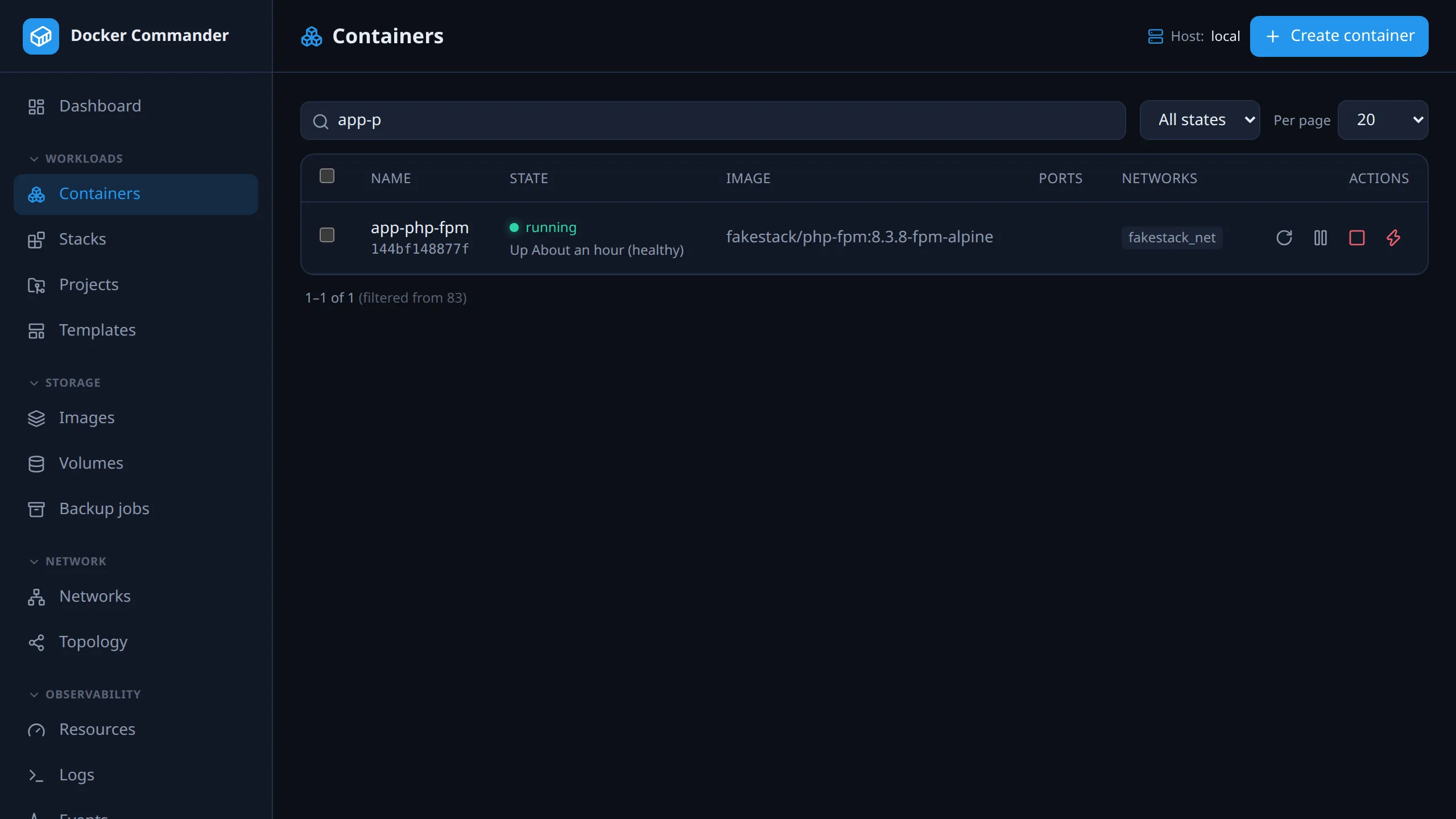
Section titled “The list”Filter by state, search by name, image, id or state, and pick a page size (10–100). The row buttons depend on the state: a running container has Restart, Pause, Stop and Kill; a paused one has Unpause; a stopped one has Start. Click a name to open the detail page.
Bulk actions. Tick rows (the header checkbox selects the current page) to get Start, Restart, Stop and Pull.
- Every bulk action confirms first and lists the containers it will touch.
- Start/Restart/Stop run a few at a time in parallel and end with a summary of what succeeded and what failed, with Docker’s error for each failure.
- Pull downloads each image once, even when containers share it or spell it
differently (
nginxvsnginx:latest). Progress is per image, and Cancel stops the download on the server too. - Pull needs access to both Containers and Images, because it uses registry credentials and writes to the image store.
Create container covers the common docker run options: image (required),
name, command, ports (host:container[/proto] per line), env (KEY=VALUE per
line), volumes (src:dst[:ro] per line), restart policy, memory limit (MiB),
CPUs, and whether to start it now. For anything you’ll run again, a
project is better: its setup is saved in a compose file.
Detail page
Section titled “Detail page”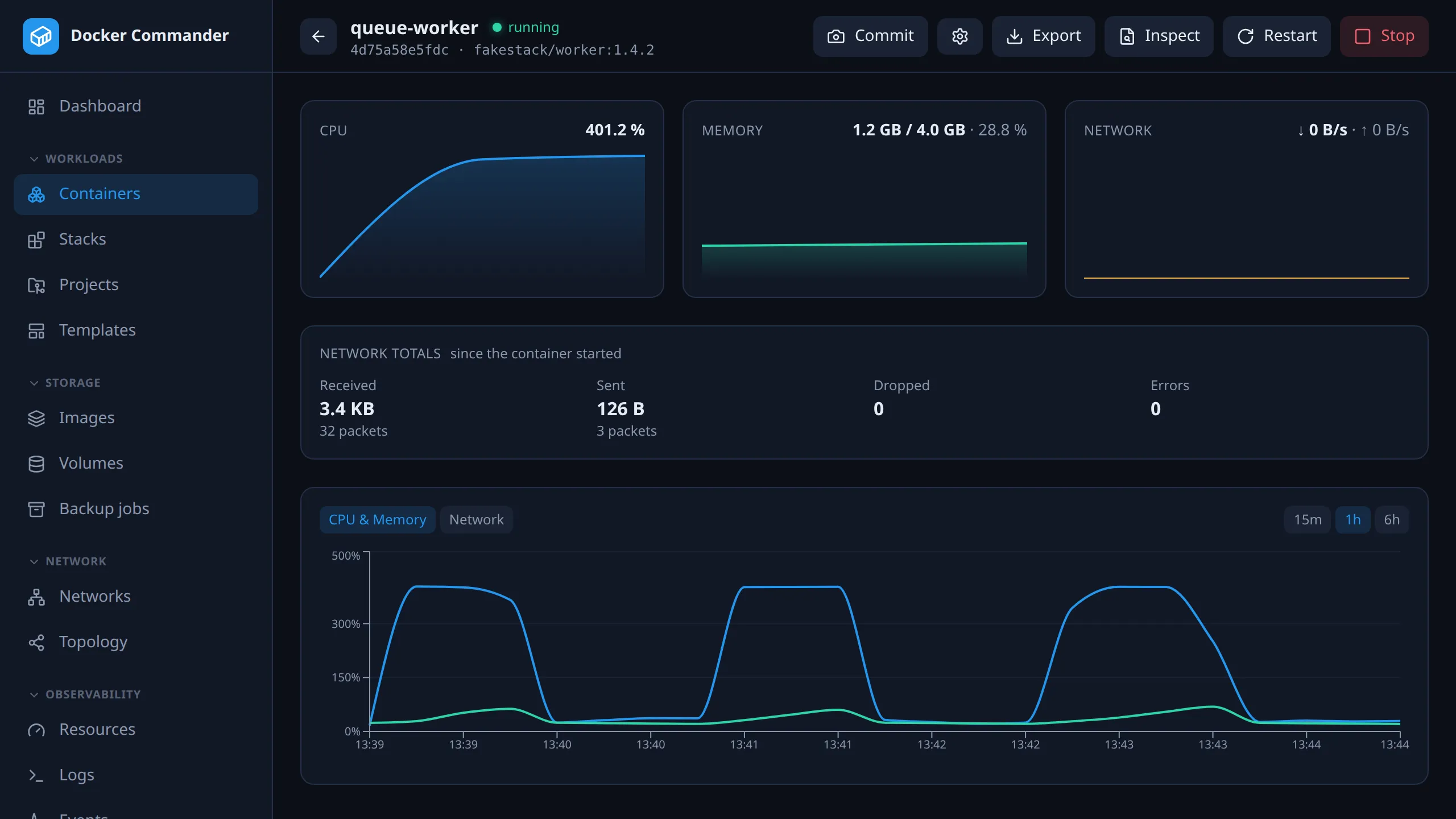
Live CPU, memory and network charts, and a history chart (15 min, 1 h, 6 h) with a CPU & memory view and a Network view.
| Button | What it does |
|---|---|
| Commit | Saves the container’s filesystem as a new image, with an optional Comment. |
| Settings | Rename; change memory/CPU limits and restart policy while running. |
| Export | Downloads the whole filesystem as a .tar. |
| Inspect | Docker’s raw JSON for the container, with a line filter and Copy JSON. |
| Restart / Stop | Shown while the container runs. |
| Start | Shown while it is stopped. |
| Tab | Shows |
|---|---|
| Overview | Status, health, restart count and policy, command, networks, ports, mounts. |
| Logs | Live output, with a text filter and stdout / stderr toggles. To search many containers, use Logs. |
| Console | A shell inside the container. Needs a running container and /bin/sh in the image. |
| Processes | docker top, refreshed periodically. Needs a running container. |
| Files | Browse, create folders, upload, download, delete. |
| Changes | Files added, changed or deleted compared with the image (docker diff). |
| Env | Environment variables. |
Technical notes
Section titled “Technical notes”- Memory limit and swap. Setting a memory limit sets the swap limit to the same value, so the container gets no extra swap. Docker would otherwise reject the change when an existing swap limit is lower.
- Probe. Without it, a port shows a guess from its number. Probe connects to published TCP ports and recognises SSH, HTTP(S), TLS, SMTP, FTP, POP3, IMAP, MySQL/MariaDB and Redis, or shows the raw banner. Other services keep the guess from the port number. UDP ports keep the guess and nothing connects to them, since UDP services often don’t answer an unknown client. On an SSH host the probe goes through the SSH connection. It only connects to your own hosts.
- Files. Transfers work like
docker cp. Listing, creating and deleting runls,mkdirandrmin the container without a shell, so an image without those binaries can’t be browsed (use Export instead). Uploads are capped at 2 GiB, and an archive that would unpack to more than 512 MiB is refused (Limits).
Network
Section titled “Network”- Docker only reports counters that grow from container start, so the chart shows the rate calculated from them. History stores the counters and calculates the rate on read, so old windows stay correct. A restart resets the counters, which shows as a dip to zero, not a spike.
- Under the chart are the totals since the container started: received and sent, with packets, dropped and errors. Dropped and errors are normally zero, and when they aren’t, they’re often the only sign of a network problem.
- Several interfaces are summed, with the count shown. Docker doesn’t say which network each interface belongs to, so per-network figures live on the network detail, where that is known.
Permissions
Section titled “Permissions”A read-only user sees the lists, charts, logs and metadata, but every action is blocked. That includes Export, file downloads and the Console, which need write access. Export and the download buttons aren’t shown without it. See Users & roles.