
Volumes
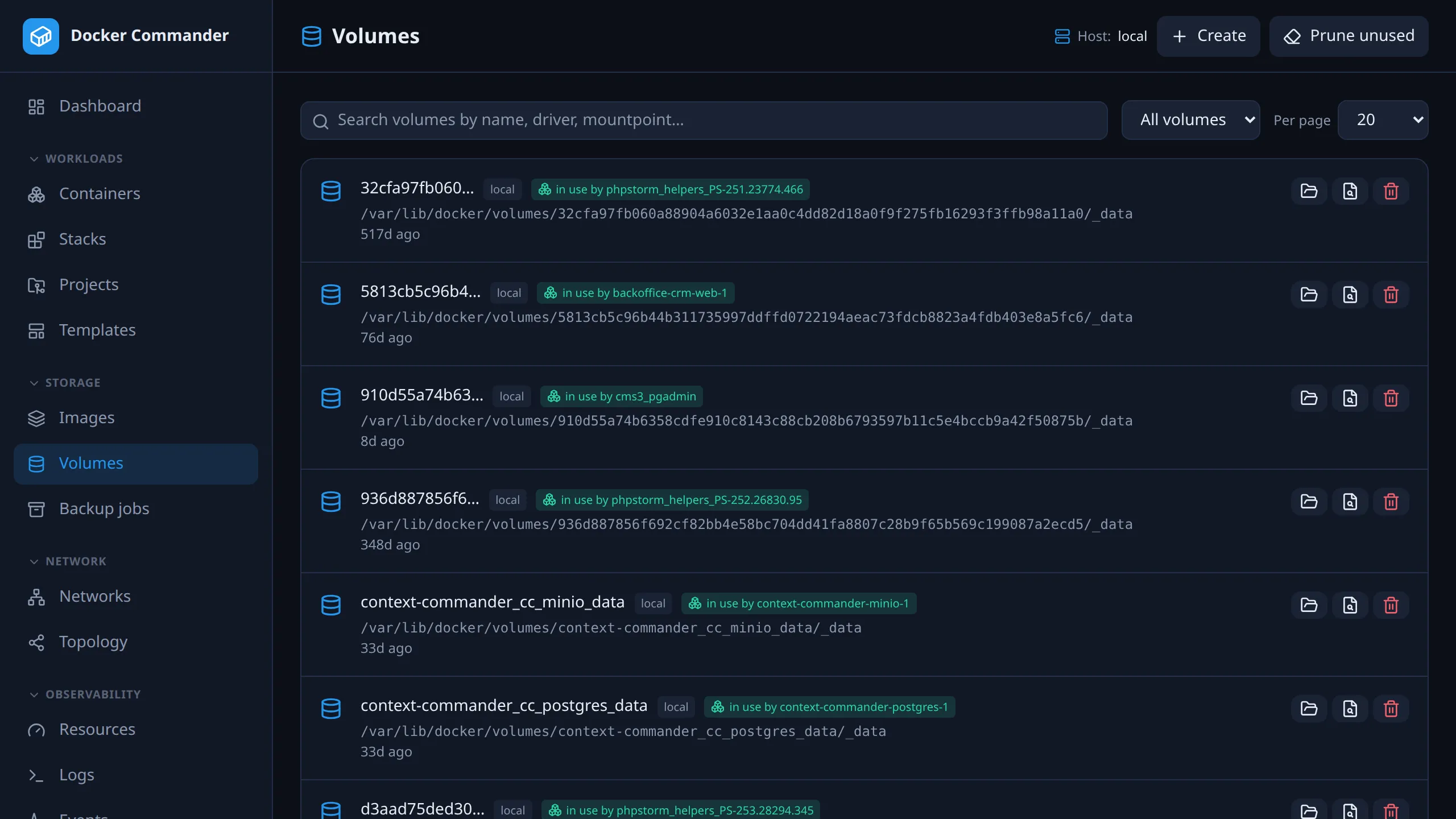
The volumes on the selected host, which containers use them, and what’s inside. The Dashboard shows their total size; Resources → Disk shows each one and what a prune would free.
Common tasks
Section titled “Common tasks”Look inside a volume. Click Browse files. You can open folders, download files and upload new ones without starting a container yourself.
Create a volume with data already in it. Click Create and pick a .zip,
.tar or .tar.gz under Seed from archive. It is extracted into the new
volume.
Remove a volume that’s still in use. Check in use by … on its row, or Inspect the volume to understand the dependency. Stop and remove those containers first. Force does not help here: the daemon refuses an in-use volume either way.
Clean up leftovers. Click Prune unused to delete every volume no container uses. This deletes their data permanently, so check the Unused filter first.
Check a volume’s backup. Admins see a backup: ok, failed or never run badge on a volume that has a single-volume backup job on this host. Hover a failed badge for the error.
The list
Section titled “The list”Each volume shows its driver, mountpoint and age, and which containers mount it. That way you know what you’d affect before removing one. Filter by In use, Unused or All volumes, search and paginate as elsewhere.
| Action | What it does |
|---|---|
| Create | A named volume with an optional driver (default local). Optionally seed it by extracting a .zip, .tar or .tar.gz into it. |
| Browse files | Opens the file browser. |
| Inspect | Docker’s raw JSON: driver options, labels, mountpoint. |
| Remove | Deletes the volume. If the daemon refuses, a Force remove button appears. |
| Prune unused (header) | Removes every volume not used by any container. |
What force is for. It is not a way past “volume is in use”: the daemon rejects that immediately, with or without force. It helps with a volume whose last container has just gone away. Teardown is asynchronous, so a removal can fail a moment before it would have succeeded.
File browser
Section titled “File browser”- Navigate directories and create folders.
- Upload one file at a time, or Extract an archive (
.zip,.tar,.tar.gz) into the current directory. - Download a file (binary-safe), or the current folder as
.tarwith Dir, and delete files and folders.
Uploads follow the same limits as container files. Read-only access to Volumes lists files but can’t download, upload or delete them; the download buttons aren’t shown.
How it works
Section titled “How it works”A named volume has no path reachable through the Docker API. So Browse files runs a tiny throwaway helper container with the volume mounted, and uses the same in-container file operations as the container Files tab. That’s why it works on local, TCP and SSH hosts.
The helper is hidden from the Containers view and removed automatically: when you close the browser, at startup (local host only), and once it is over 2 hours old, the next time a volume browser opens on that host. A helper left on a remote host stays until then.