
Networks & Topology
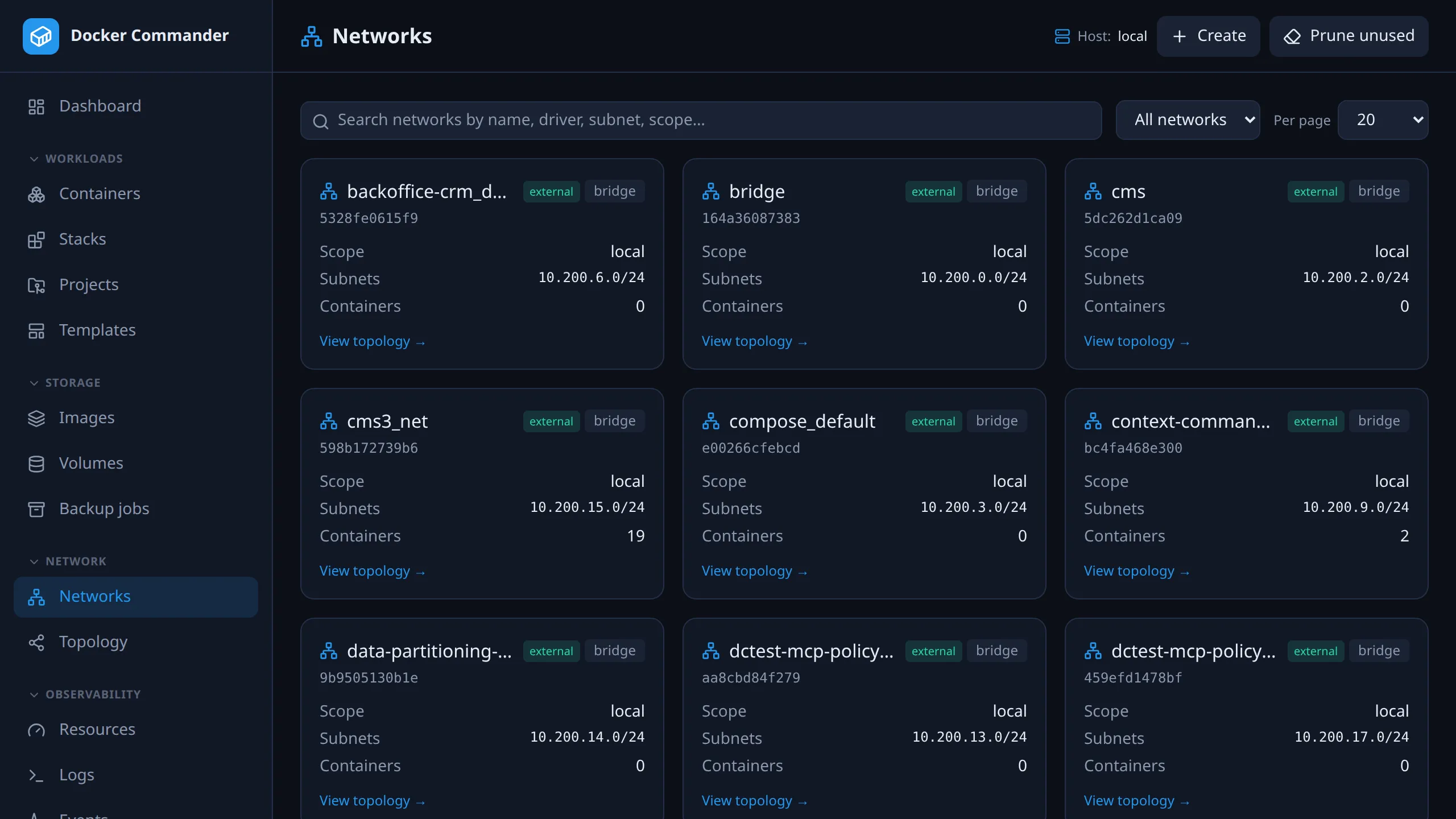
The Docker networks on the selected host, and a graph of which containers sit on which network. For a container’s own traffic, open its detail page.
Common tasks
Section titled “Common tasks”Let two containers talk to each other. Create a network, or open an existing one, click Connect, pick a container and click Connect again. Repeat for the other container. Containers on the same user-defined network can reach each other.
Find a container’s IP. Open the network and look at the List view. It shows each container’s IP on that network and its published ports.
Remove a network. Disconnect its containers first, using the per-row disconnect in the network detail. The daemon refuses a network that still has containers attached.
Isolate a backend from the internet. Create the network with Internal ticked. Containers on it get no external connectivity.
See what a stack is connected to. Open Topology and pick the stack in the stack dropdown.
Networks
Section titled “Networks”A card per network with driver, scope, subnets, an internal or external badge and the attached-container count. Search and filter (in use, unused, internal, all) as elsewhere.
- Create (header): a user-defined network with a name, a driver (default
bridge), an optional subnet and gateway, and two flags. Internal means no external connectivity. Attachable (on by default) lets standalone containers join a swarm overlay network; bridge networks accept any container either way. - Prune unused (header): removes every network not used by any container.
Network detail
Section titled “Network detail”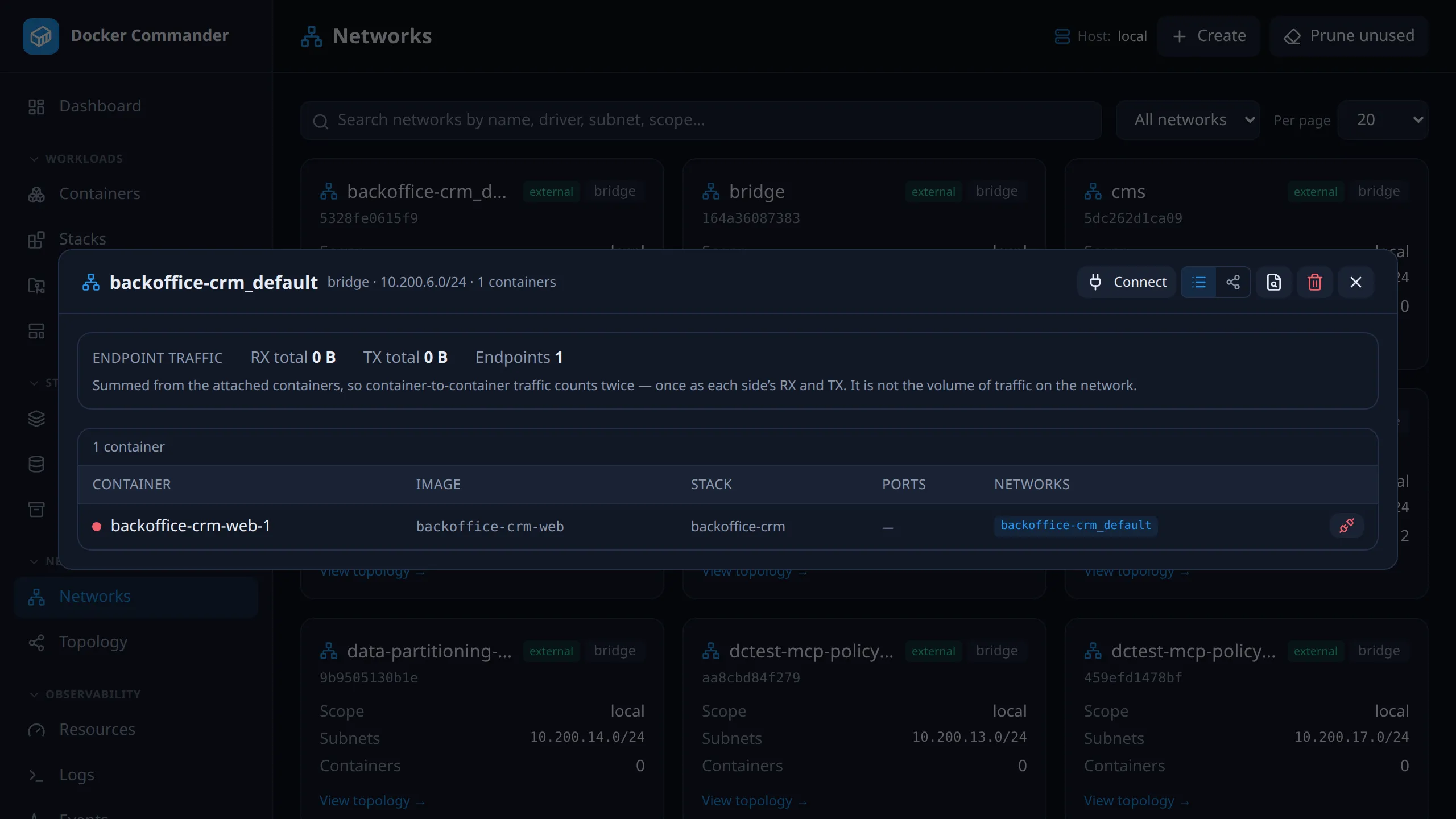
Click a card to open its detail. It shows the attached containers as a list or a graph (toggle, top-right).
| Control | What it does |
|---|---|
| List (default) | A compact table: state, image, stack, published ports and the container’s IP on this network, with a disconnect per row. |
| Graph | The network and its containers as an interactive diagram, drawn like the Topology page. |
| Connect | Opens a picker that attaches one container not yet on the network. Hidden when every container is already attached. |
| Inspect | Docker’s raw JSON. |
| Remove | Deletes the network. Predefined networks (bridge, host, none) can’t be removed. |
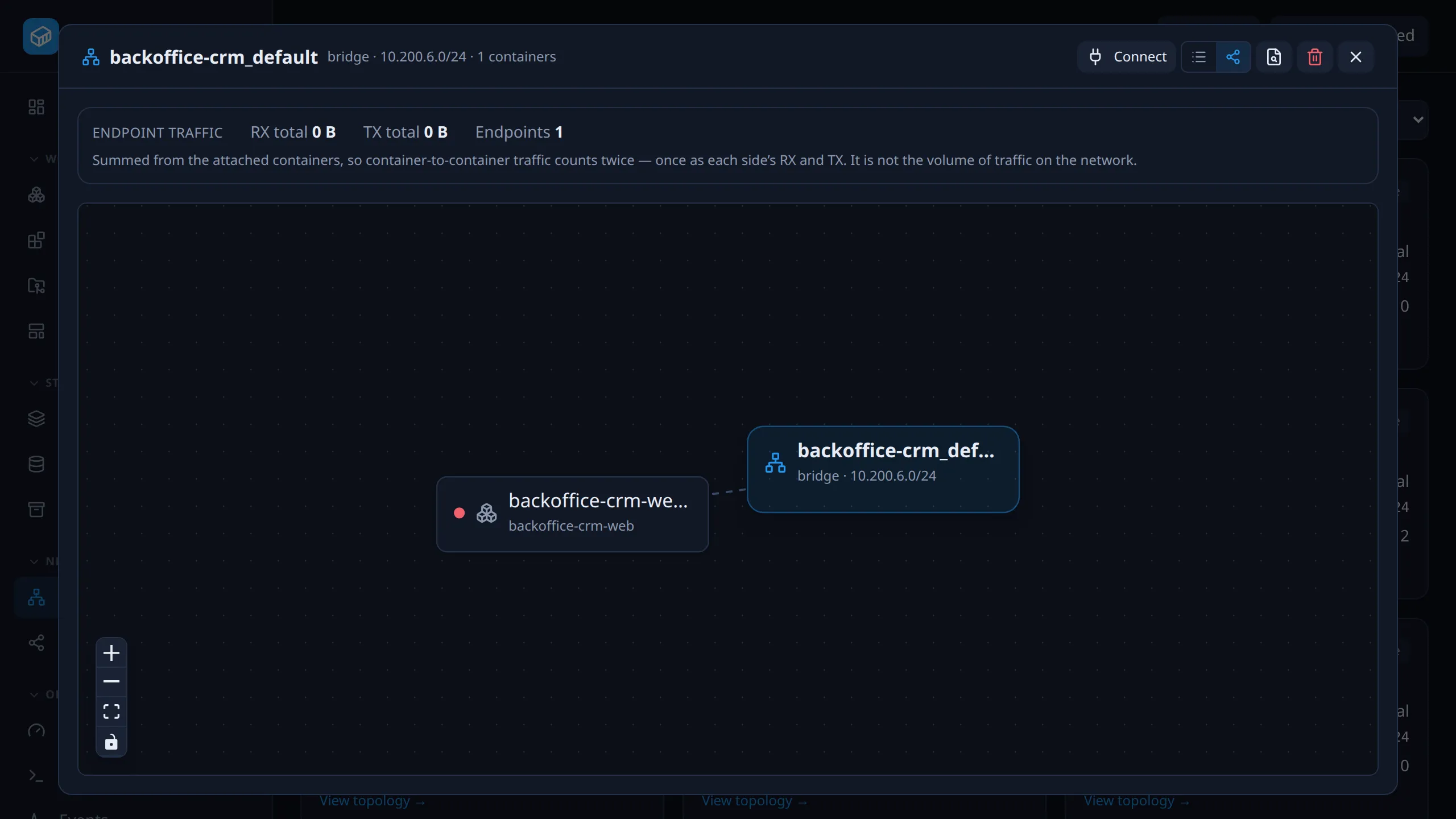
The detail also shows Endpoint traffic: RX and TX totals summed from the attached containers. See Endpoint traffic for what that number does and doesn’t mean.
Topology
Section titled “Topology”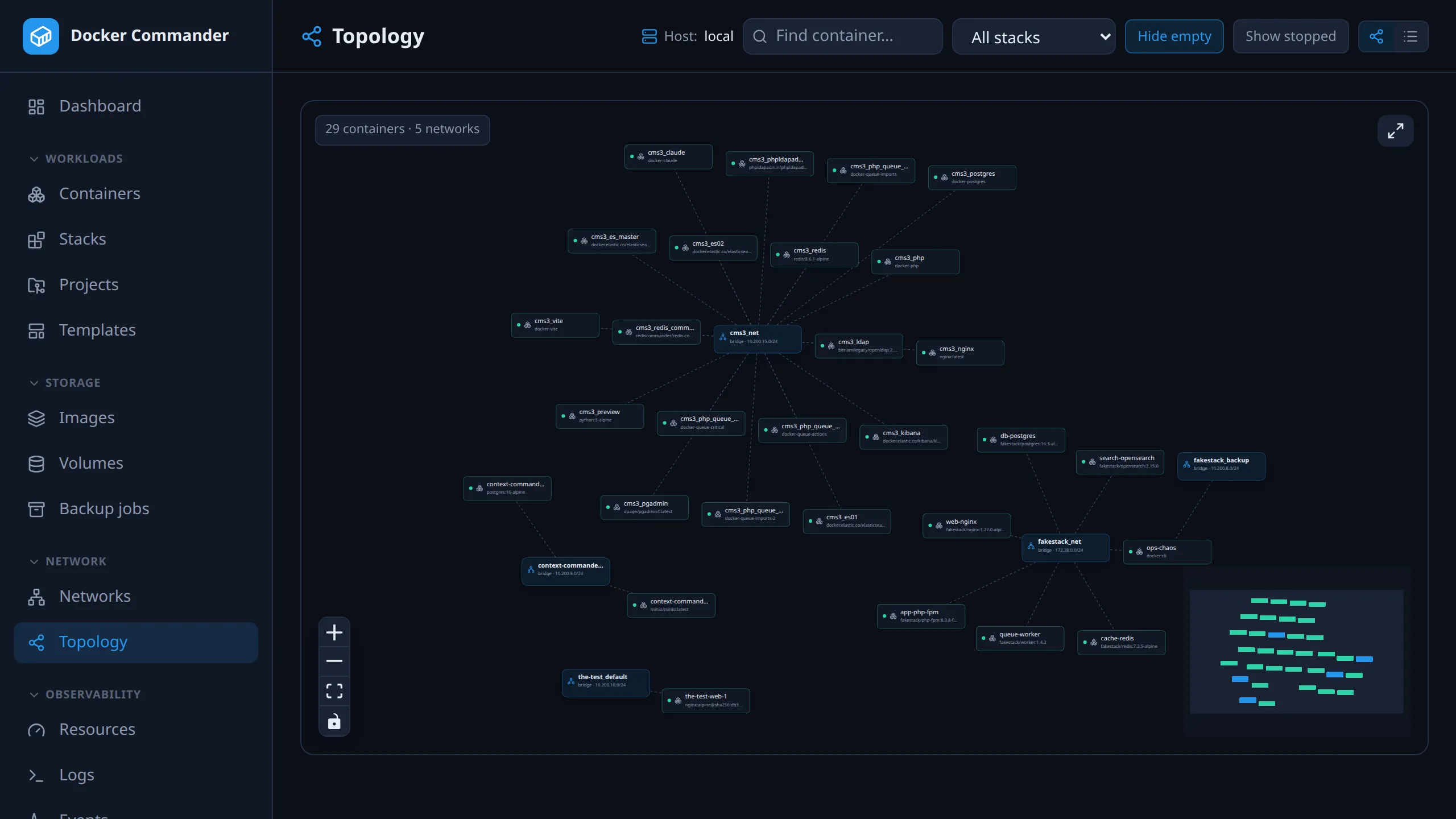
An interactive graph of containers and networks. Containers cluster around their networks, and the graph spreads across the width instead of one tall column.
- Pan and zoom, drag nodes to rearrange (edges re-route cleanly), and use the controls bottom-left, the minimap, or the fullscreen button top-right.
- Click a container node to jump to its detail page.
- Find container (name, image or stack) narrows the graph to the matches and the networks they’re on. The stack dropdown filters to a single compose project. A badge shows the current node count.
- Hide empty (graph only) and Show stopped toggles. The default is a clean view: running containers and non-empty networks. The toggles, stack and view persist across reloads; the search does not.
- List view (toggle, top-right): a dense, filterable table of containers (state, image, stack, ports, networks). Easier to read on a large host.
On a busy host, use the search, the stack filter or the list view. Empty networks are hidden automatically while a filter is active.
Endpoint traffic
Section titled “Endpoint traffic”Docker does not report per-network counters, so the network detail sums the attached containers’ own totals. It says two things plainly instead of showing a confident wrong number:
- It is endpoint traffic, not network traffic. Container-to-container traffic inside the network is counted twice: once as one side’s TX and once as the other’s RX.
- A container attached to several networks has counters covering all of them, and Docker gives no way to split them. Those containers are listed but left out of the totals, and the number left out is shown.
A container attached to exactly one network is unambiguous. That is the common case, and it is what makes the number useful at all.
Technical notes
Section titled “Technical notes”- Why no per-network counters.
/containers/{id}/statsis keyed by interface name (eth0,eth1…) and carries no network identity on Linux. The API has anendpoint_idfield, but the daemon only fills it on Windows.docker statsitself shows a single aggregateNET I/Ocolumn for the same reason. - Graph layout. The graph uses React Flow with a force-directed layout. The network detail graph uses the same renderer as the Topology page.