
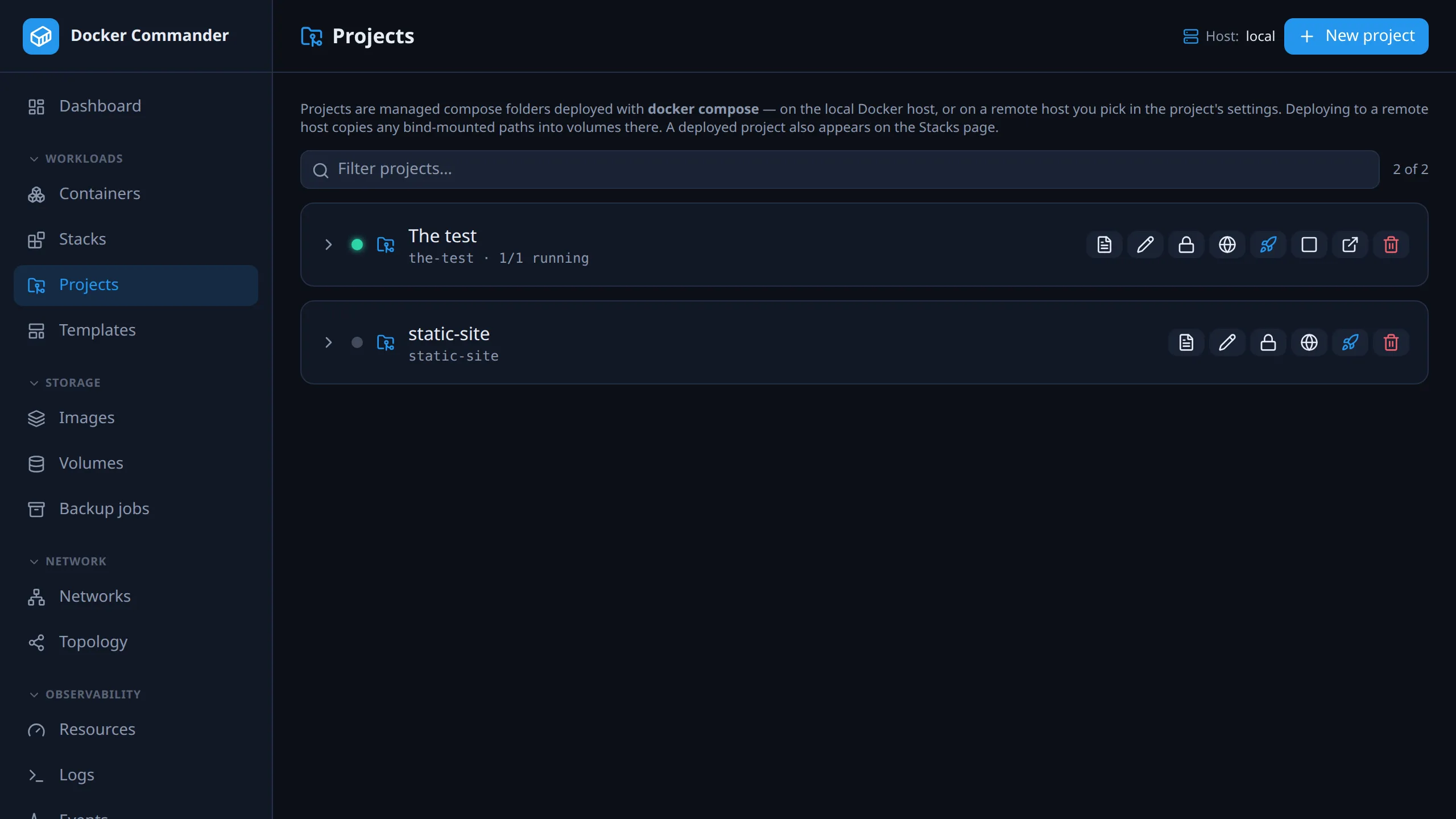
Projects
A project is a Compose folder that Docker Commander stores and edits for you: a
compose file plus its sidecar files (configs copied into containers, .sh
scripts, init files). Deploying it runs the real docker compose CLI, so the
full Compose feature set works: depends_on, profiles, build:, configs,
init containers. A deployed project also appears on Stacks, which
handles its lifecycle and “view compose”. Its compose file opens read-only
there; edit and deploy it here.
Common tasks
Section titled “Common tasks”Start a new app from a template. Click New project, pick a preset such
as Nginx + Postgres + Adminer, and fill in its variables. Blank fields fall
back to a default, and secret fields can be generated for you. A preview of the
resulting compose.yml shows next to the form before anything is created.
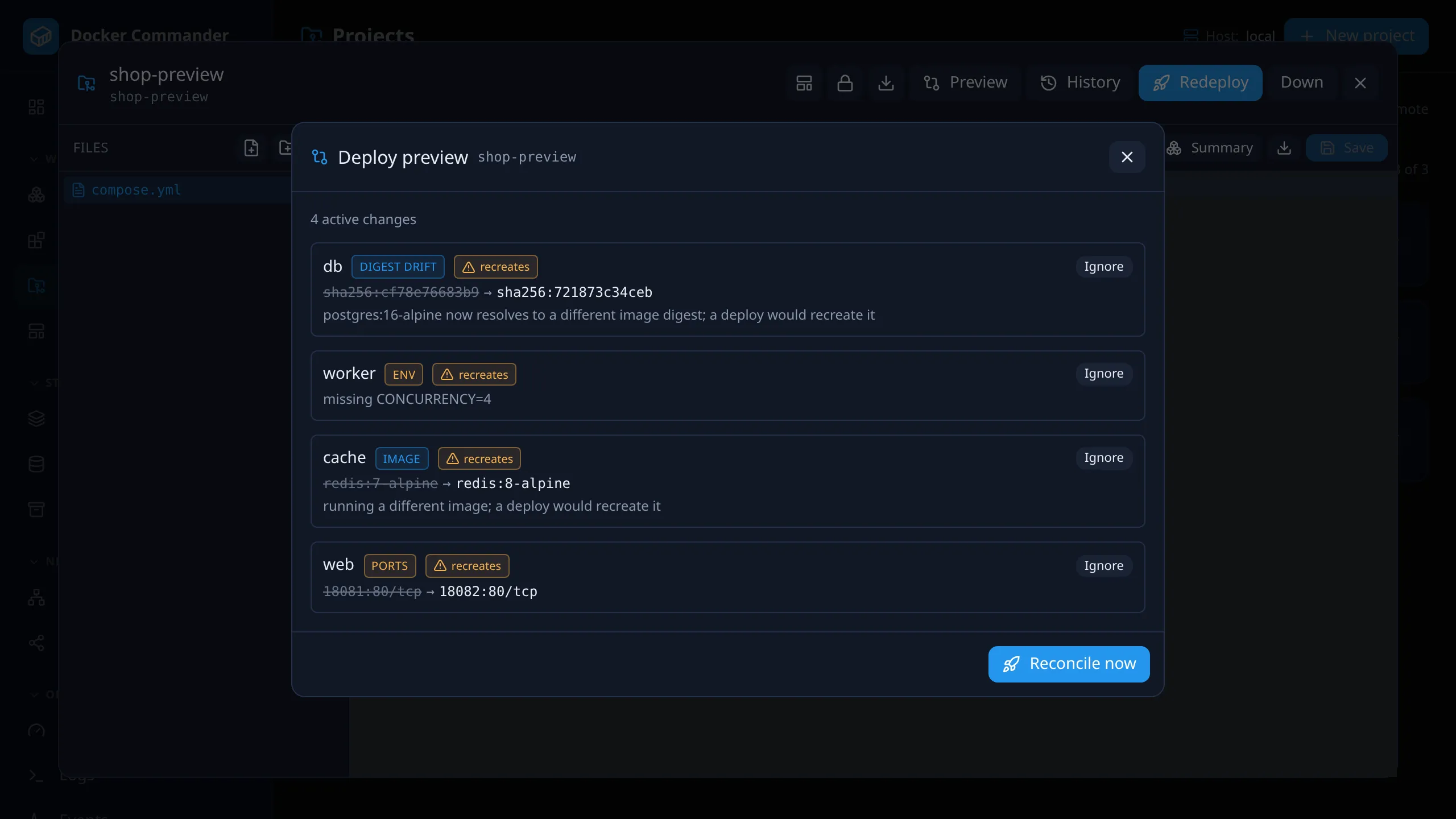
Check what a deploy will change. Save, then click Preview in the editor. It compares the saved files with what is running, lists each service that would change, and marks the ones that will be recreated.
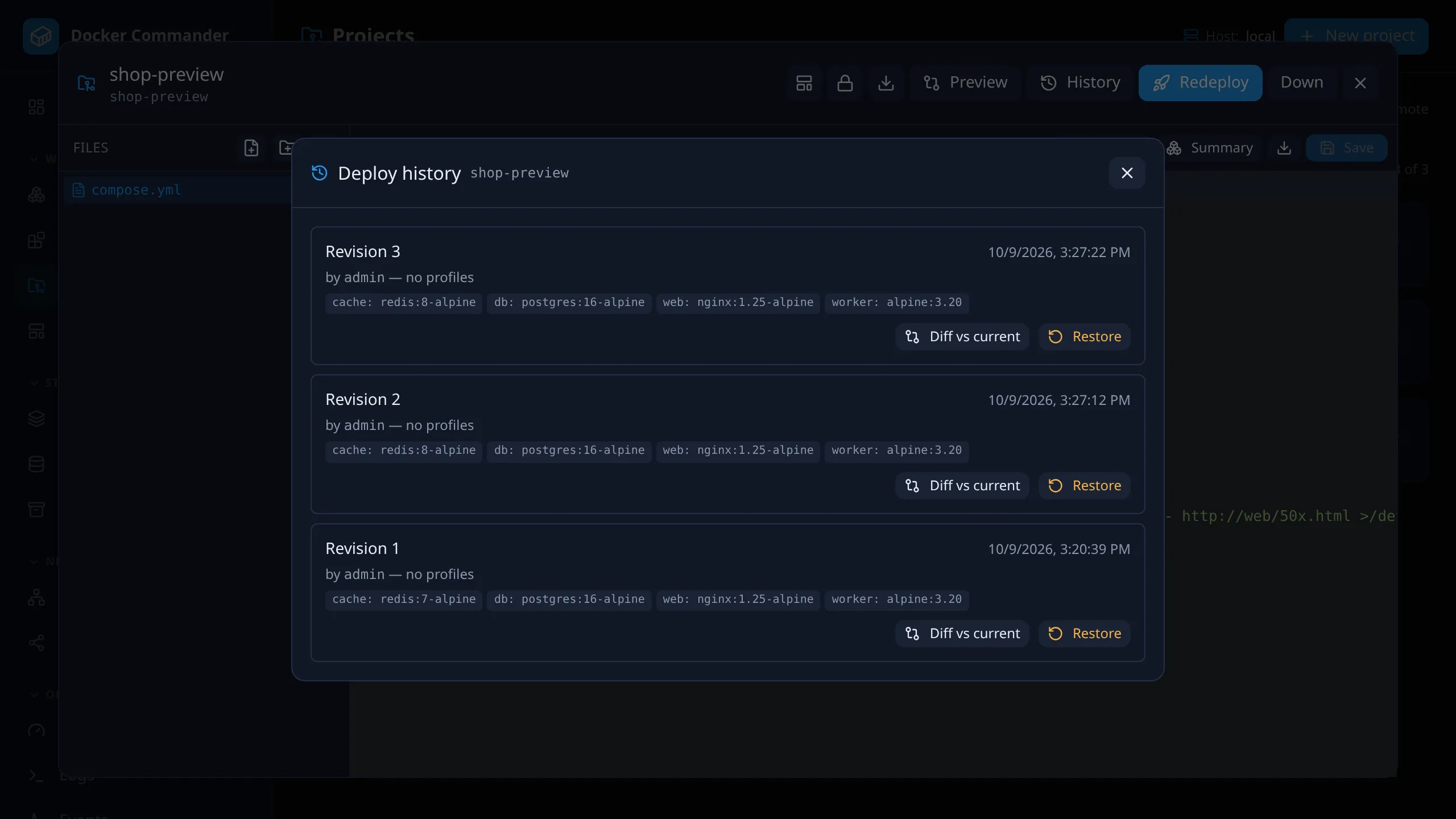
Roll back a bad deploy. In the editor, click History, find the last good revision with Diff vs current, then click Restore. Images that had a recorded digest are pinned to it, so a moved tag can’t bring back something different. Locally built images are restored by reference only. Named volumes are not touched, so data changes such as a database migration are not undone.
Keep a password out of the compose file. Click the lock icon on the project
card, add a secret, and write ${DB_PASSWORD} in the compose file. The value is
supplied only at deploy time and never written to disk.
Deploy to another server. In the project’s Settings (pencil), pick the target host. Bind-mounted files from the project folder are copied there on each deploy, so editing them later needs a redeploy. Paths outside the folder are refused unless Allow host paths is ticked. See Deploying to a remote host.
Put a service on a domain. Click the globe icon and map app.example.com
to service web, port 8080. Traffic is routed only when an admin has enabled
the embedded proxy (which needs ACME mode), and only for projects on the local
daemon. Otherwise the
mapping is just stored. See Domains.
Copy a project to another instance. Download it as a .zip from the editor
header, then use New project → Import .zip there. Secrets are not files, so
they are not in the .zip. A recovery bundle can carry them, and
the domain mappings, too.
Where it runs
Section titled “Where it runs”- The
docker composeCLI runs on the Docker Commander machine. The daemon it talks to can be anywhere: the local daemon (default) or any host added under Hosts. The CLI is pointed at it withDOCKER_HOST, plus the host’s TLS certs or anssh://address. - The target host is the project’s own setting. It does not follow the sidebar host switcher.
- Deploy and Down are disabled, with a note, when the CLI is missing on the Docker Commander machine. That is the only place it has to exist.
- Under systemd, Deploy/Down disabled although
docker composeworks in your shell? That is theProtectHome=truehardening. See the fix in Deployment → Running as a service.
Creating a project
Section titled “Creating a project”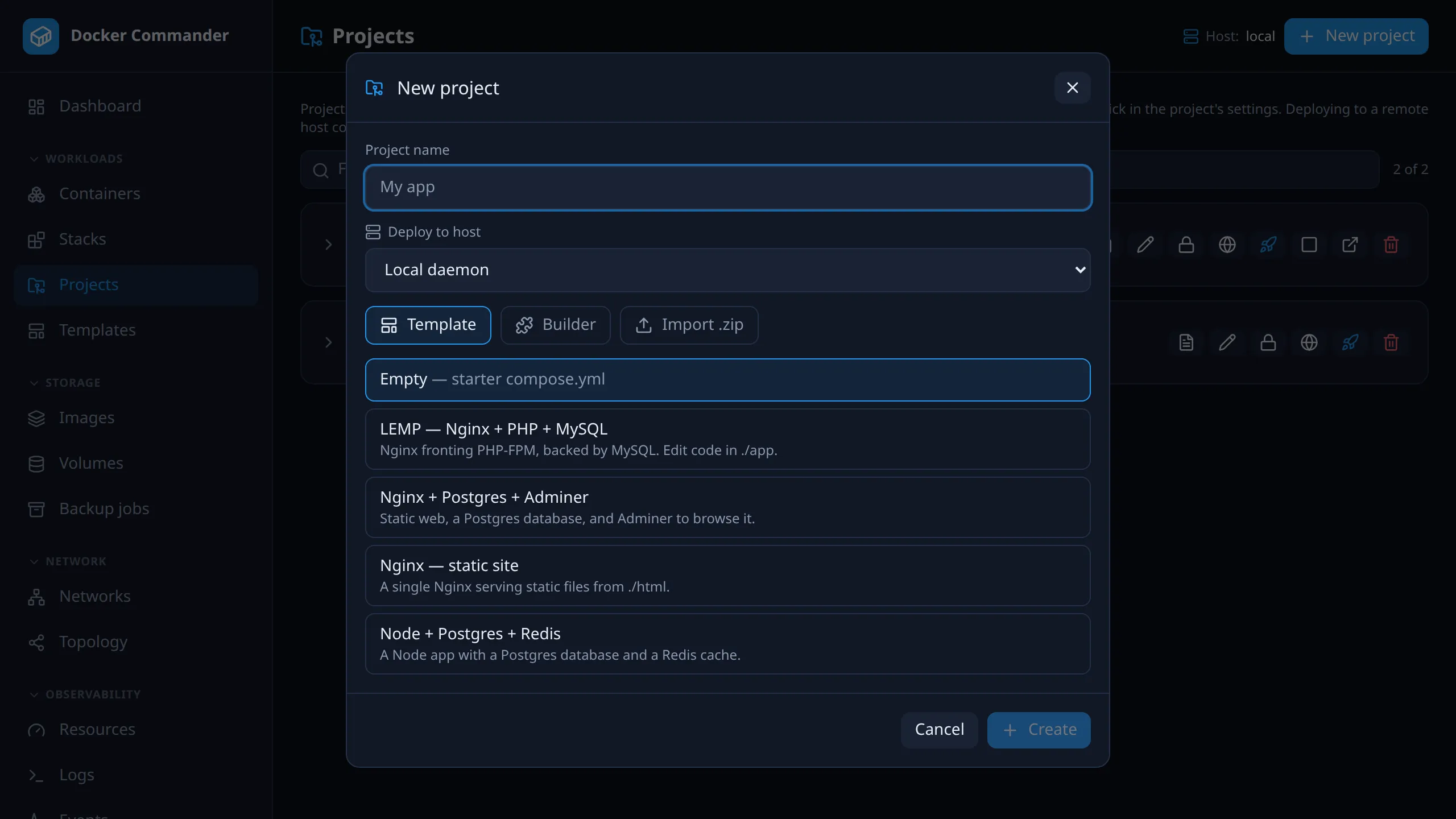
Enter a Project name, pick the host to deploy to, then choose how to
scaffold it and click Create (Import for a .zip). The editor opens;
Deploy is there. The identifier (the slug) is derived from the name,
lowercased, with diacritics transliterated. Files are always rendered and
written on the server. Once you pick a preset (not Empty) or builder items,
a live read-only preview of the compose.yml renders next to the form, on
wider screens, marked valid, warnings or invalid.
| Mode | What you get |
|---|---|
| Template | A preset: Nginx — static site, Nginx + Postgres + Adminer, LEMP (Nginx + PHP + MySQL), Node + Postgres + Redis, or Empty for a bare starter compose.yml. Presets can declare variables (ports, database names, passwords) on a small form. Blank fields fall back to a default, and secret ones can be auto-generated. |
| Builder | Click service blocks (Nginx (static web), PHP-FPM, Node.js, PostgreSQL, MySQL, Redis, Adminer) to add them. Click a block again to add another copy, for a cluster. They are merged into one compose.yml you can edit afterwards. |
| Import .zip | An existing project folder, written through the same path sandbox. |
The builder has three tabs:
- Services: each added block gets an editable service key, which must be unique and non-empty, and its own remove button. Custom service… adds your own block (name, service key, service YAML, optional named volumes). It is saved and reappears in the builder.
- Shared defs: reusable top-level YAML anchors such as
x-pg-common: &pg-common …. They are emitted aboveservices:, so several services can share one definition (security, cert mounts) and merge it with<<: *pg-common. Click one to include it, then click its name next to Merge: on a service in the Services tab to inject it. Service defaults and Secured Postgres are built in; save your own with Custom definition…. - Variables: the values the added blocks declare, such as ports, the database name and password. Blank fields fall back to a default; a blank password field is generated.
Your own presets and definitions have a delete button right in this dialog.
Save as preset. The editor’s preset button saves the open project’s files as a preset, listed under Template and on the Templates page. Built-in presets and blocks ship with the binary and are read-only. Yours live in the data directory and can be edited or removed.
Reference sidecar files relative to the project folder
(./html:/usr/share/nginx/html), so they land in the containers exactly as the
CLI would mount them.
Managing templates
Section titled “Managing templates”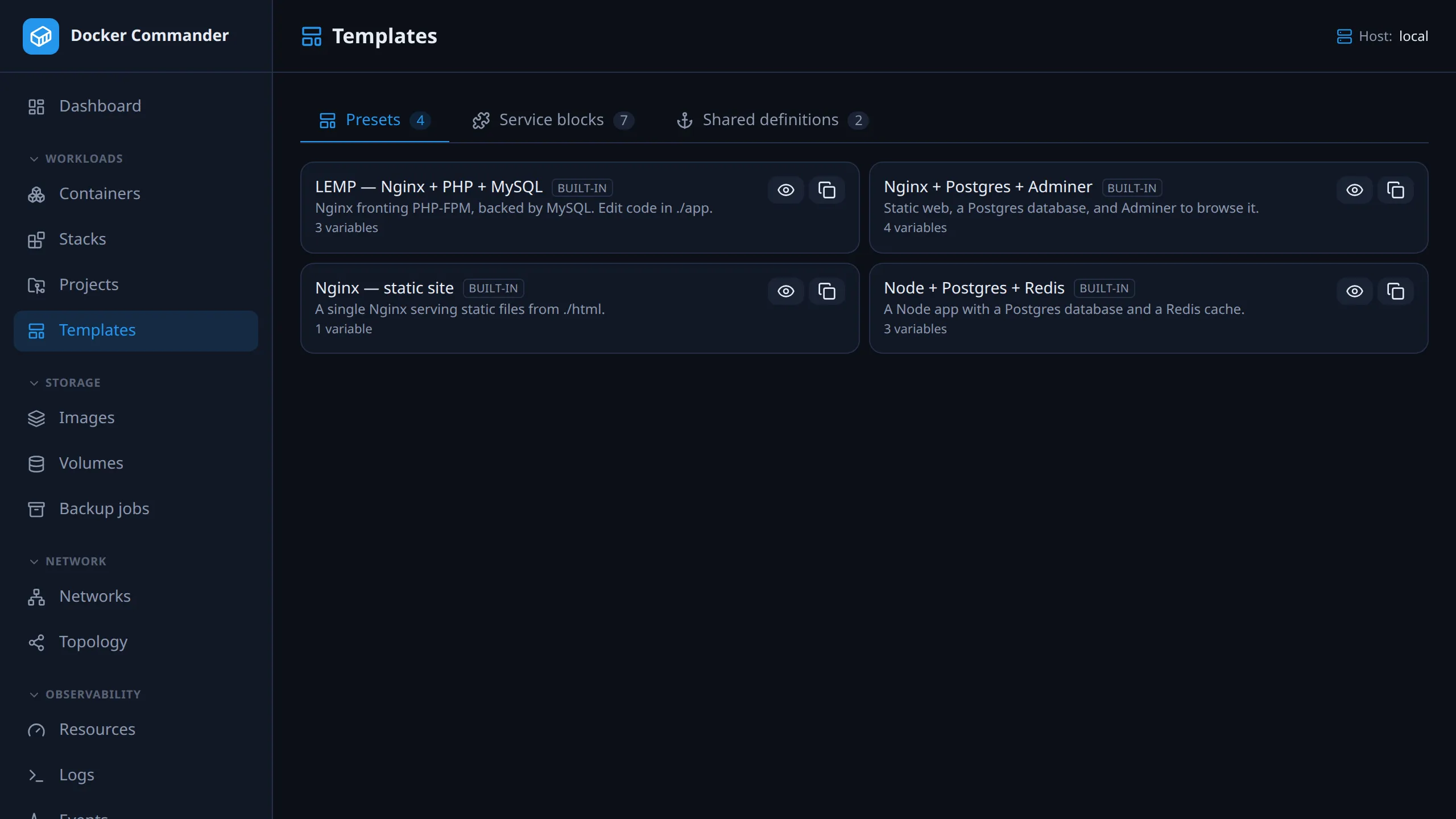
The Templates page (sidebar, Projects permission) holds your presets and builder blocks. Built-in items open read-only so you can inspect them. Every item, built-in or yours, has a Duplicate (copy icon) button that asks for a name and saves an editable copy. Only your own items can be edited or deleted.
| Section | What you can do |
|---|---|
| Presets | Edit a saved preset’s files in the multi-file editor, rename it or change its description, download it as a .zip, or delete it. |
| Service blocks | Create, edit (name, service key, service YAML, named volumes) or delete a block. Blocks added here or via Custom service… appear in the builder. |
| Shared definitions | Create, edit or delete top-level YAML anchors. They appear in the builder’s Shared defs tab. |
The editor
Section titled “The editor”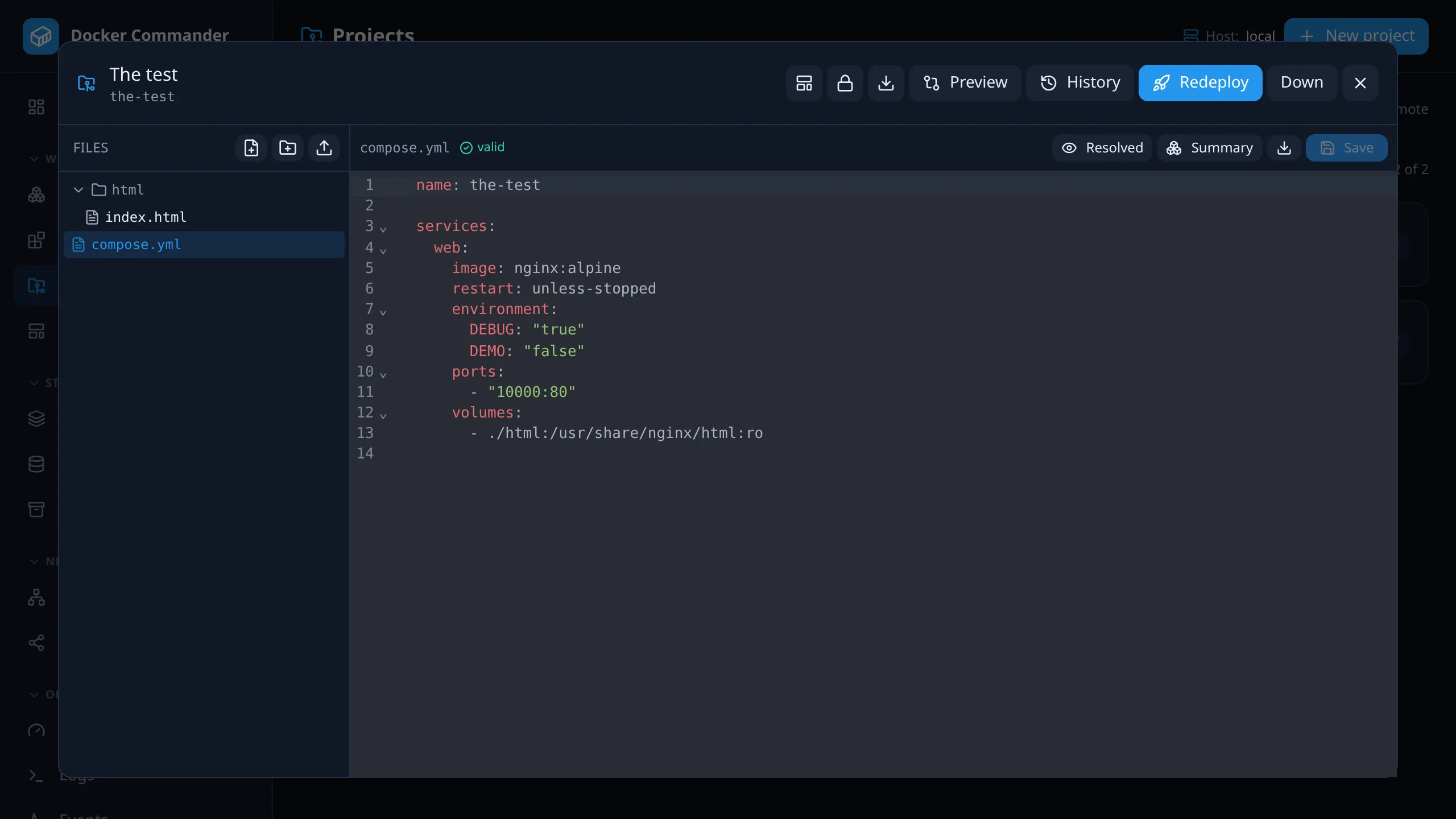
A file tree on the left and a code editor on the right, with highlighting for
YAML, JSON, shell, Dockerfiles and .conf/.env files. The header holds
Save as preset, Secrets, Download (whole project as .zip),
Preview, History, Deploy/Redeploy and Down.
- New file, New folder and Upload create items in the current folder. Click a folder, or open a file, to make it the target. The toolbar shows where new items land, with an × to go back to the project root. Upload accepts binary and data files too, shown as download-only in the tree.
- Save writes the open file; a dot marks unsaved changes. Download next to it saves the single file.
- Image autocomplete. On a compose
image:line you get repository names: local images first, then a Docker Hub search. After a:you get that repository’s tags, local and from Docker Hub. The Create-container form does the same. It is best-effort; offline you still get local images. For a registry added under Registries, tags also come from that private registry’s API, with its stored credentials. Registries you haven’t configured are never contacted. - Compose autocomplete. Schema-aware suggestions for top-level keys, service
keys at the right indent, nested
build/healthcheck/deploy/loggingkeys, and known values (restart:→always/unless-stopped). Ctrl+Space opens the list on a blank line. It is a typing aid, not a validator; the real check isdocker compose config. - Profiles. When the compose file defines
profiles, a toggle bar picks which to enable. The choice is remembered and applied on deploy. Deployed with: … shows the profiles used on the last successful deploy; the chips only show what is selected for the next deploy.
Validation
Section titled “Validation”Validation runs on the unsaved buffer. Problems are underlined on the line.
For compose files and Dockerfiles a status chip sums them up; those checks need
the docker compose CLI.
| File | Checked with |
|---|---|
| Compose files | docker compose config, the parser deploy uses. Anchors, merge keys <<, ${VAR} interpolation and extends/include resolve as at up time. Unset-variable warnings are shown too. |
| Dockerfiles | docker build --check, BuildKit’s linter. No build runs. |
YAML, JSON, .env |
Instant syntax lint in the browser. |
On a compose file, two more buttons appear:
- Resolved shows the fully flattened compose (anchors, interpolation,
extendsresolved), exactly whatdocker compose updeploys. - Summary lists services, published ports and volumes, checks for duplicate host ports, and badges each service Running, Partial, Stopped, Not in active profile or Not deployed. Badges compare against the live containers and the profiles actually deployed, so a service those profiles leave out reads “Not in active profile”, not “Stopped”.
Lifecycle
Section titled “Lifecycle”| Action | What it does |
|---|---|
| Deploy / Redeploy | docker compose up -d --build with the selected profiles, on the target host. Redeploy re-applies after edits. The combined output is shown. Private images are pulled with the credentials stored under Registries, on any target host. |
| Preview | Compares the files with what is running, per service, and flags changes that recreate a container. |
| History | Every successful deploy as a revision: time, author, profiles, images. Diff vs current or Restore. |
| Down | docker compose down on the target host. Available once deployed. |
| Settings | Display name, target host and, for a remote host, Allow host paths. Changing a deployed project’s host adds Bring it down on … first. The slug (the Compose project name) stays fixed, so deployments remain stable. |
| Delete | Refused while deployed; it offers to bring the project down first. Deleting the last file offers to delete the empty project. |
Restarting the containers without re-applying files is done on Stacks. Deploys and restores are checked against Policy rules.
One thing at a time. While a deploy, down, restart or restore of a project runs, anything else that changes it (saving or uploading a file, deleting one, a new folder, Settings, another deploy, deleting the project) is refused with “this project is busy (… is running)”. Try again when it finishes; nothing was changed. The same holds for the AI tools’ deploy and down, and for starting, stopping, restarting or removing the project’s stack in Stacks or through the AI tools.
Drift. In Preview, a change you have reviewed can be marked Ignore. It
stops counting as drift but stays visible, and Unignore reverses it. The
next deploy clears all ignores. Reconcile now deploys with a forced
re-pull (--pull always), so a tag whose registry digest moved is fetched
again.
Restore overwrites the project files with the revision’s and redeploys with its profiles. Unsaved editor edits are lost. Images with a recorded digest are pinned to it. Your own named volumes are never touched. If any step fails, including the deploy, the previous project files are put back. On a remote host the seeded volumes are saved before the restore copies the revision’s files in, and put back on failure too; the error says whether that worked. Saving them is limited to 2 GiB in all (Limits); a restore whose volumes hold more is refused before anything changes. The restore becomes a new revision, so history only grows forward. The newest 50 revisions per project are kept by default (Settings, Limits).
Why --build
Section titled “Why --build”--build makes “what’s in the editor is what runs” true for a project with a
build: section. Plain up -d builds only when the image is missing. So
after editing a Dockerfile, or any file in its build context, the next deploy
would keep the old image and report only Container Running. Services that only
pull an image are unaffected, so image-only projects pay nothing. API callers
that don’t want to re-send a large context can POST the deploy with
{"build": false}.
Secrets
Section titled “Secrets”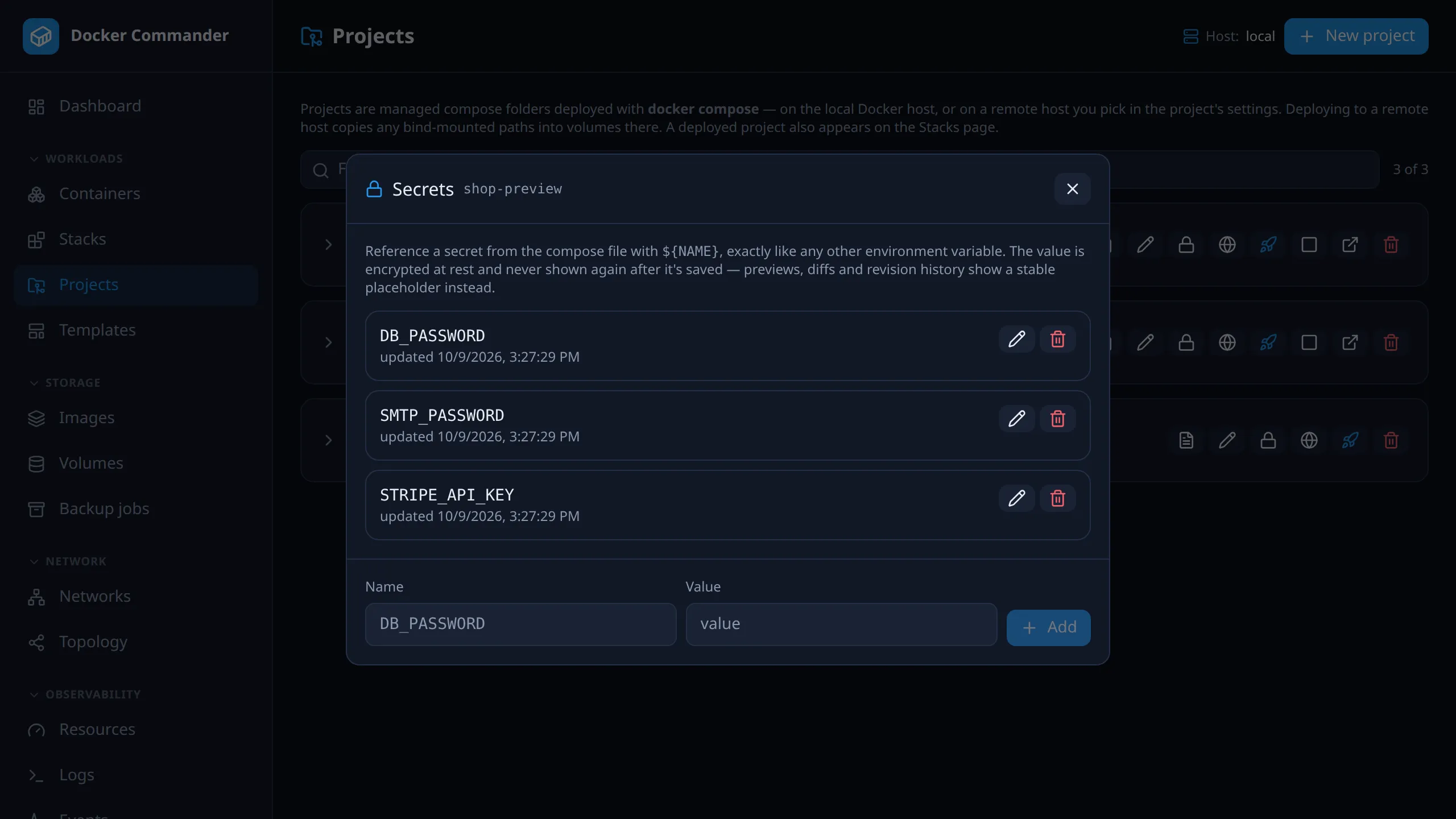
Named values such as DB_PASSWORD or API_TOKEN, used in the compose file like
any environment variable: ${NAME}. Open them with the lock icon on the project
card or in the editor header.
- The value is passed as a process environment variable at deploy time only.
It is never written to
.envor any file, so it never ends up in a revision snapshot. - It is encrypted at rest and can only be replaced, never read back, like a registry credential.
- Deleting a secret is immediate. A service still referencing it fails to resolve on the next deploy.
- Wherever a resolved value would be shown (Resolved, the deploy preview, a
revision diff), it is replaced by
secret:<fingerprint>. The same value always gives the same fingerprint and a different value a different one, so you see that something changed, not what. - Redaction matches the value, not the variable name, so it still works for
DATABASE_PASSWORD: ${DB_PASSWORD}. - It only covers the project’s current secrets. A container still running with the value of a since deleted or changed secret shows that stale value in a preview or diff, as there is nothing left to compare it with.
- This limits what Docker Commander’s screens show. It doesn’t change what
anyone with direct
docker inspector exec access to the host can see.
Domains
Section titled “Domains”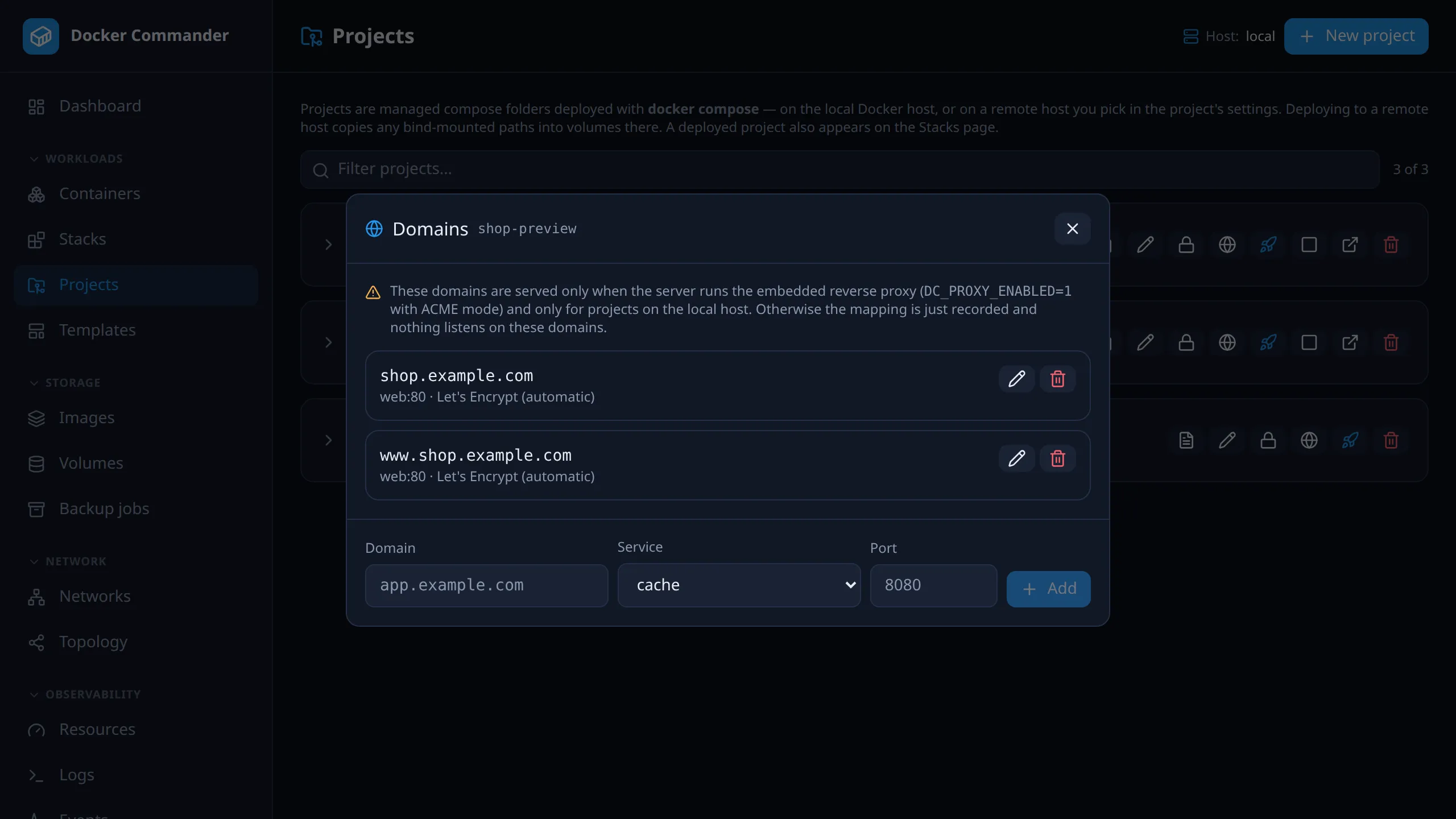
The Domains panel (globe icon on a project card) records that a domain
should route to one of the project’s services: app.example.com → service
web, port 8080. Without the embedded reverse proxy, it only stores intent
and has no effect on traffic. With the proxy, these limits apply:
- Off by default. An admin enables it with
DC_PROXY_ENABLED=1(-proxy-enabled). It is a second public-facing surface, separate from the admin UI and API, so it is a conscious choice. - Needs ACME mode for Docker Commander’s own admin domain
(
-acme-domains/DC_ACME_DOMAINS). The proxy shares that listener, and SNI picks between the admin UI and each mapped domain. No second port is opened. It doesn’t work with a static-tls-cert/-tls-keypair or without TLS. Enabled without ACME, the server logs that clearly and starts normally; the admin UI is never affected. - Local-host projects only. A mapping for a project on a remote host is recorded, but never served and never gets a certificate.
- A clean
502when the project has no running container for the mapped service and port (stopped, redeployed without that service, or a port nothing publishes), instead of stale or unrelated content. - Same network namespace as the daemon. The proxy connects to a container’s
published host port directly. That works when Docker Commander runs on bare
metal or a VM next to the daemon, the common case. It does not work when
Docker Commander runs in a container per
Docker without
--network host, since the published port lives in the host’s namespace. If the “local” daemon is really remote (DOCKER_HOST=tcp://…elsewhere), the proxy detects it and refuses. The containerized-on-the-same-machine case can’t be detected that way and is not handled.
See Deployment for the full flag reference.
Mapping rules.
- A real, fully qualified hostname: no wildcards, bare hostnames or IP
addresses. Punycode (
xn--…) is accepted. - Mapped only once per instance, compared case-insensitively
(
App.Example.comisapp.example.com), and never Docker Commander’s own admin domain. - When the
docker composeCLI is available, the service must exist in the current compose file, resolved with every profile enabled, so a service behindprofiles:is accepted. The port is the container port. It isn’t checked against the compose file, but the proxy only routes to it when it is published (ports:); otherwise it answers502. - Service and port can be edited (pencil icon). The domain can’t; delete and recreate the mapping to point a hostname elsewhere.
- Mappings travel with the project in the recovery bundle, like
secrets and images. On import they get the same checks as in the UI (valid
hostname, not the admin domain, the service exists, port 1–65535, TLS mode
acme). A mapping that fails one, or whose service can’t be checked, is skipped with a warning.
Deploying to a remote host
Section titled “Deploying to a remote host”A project can target the local daemon (default) or any remote host added
under Hosts, chosen at creation or in Settings. Deploy, down and
restart then run docker compose against that daemon, over TCP with the host’s
TLS certs, or over SSH.
Bind mounts on a remote host
Section titled “Bind mounts on a remote host”A remote daemon can’t see Docker Commander’s data directory. So each bind mount
whose source is inside the project folder (./html:/usr/share/nginx/html,
./nginx.conf:/etc/nginx/nginx.conf) is copied to a named volume on that
host, and the mount points at the volume. Sidecar files then work as locally,
with three differences:
- A snapshot, not a live mount. Files are copied at deploy time, so edits need a redeploy. Writes inside the container stay in the remote volume and don’t flow back. A local deploy mounts the folder directly, so there it is live.
- Only paths inside the project folder are shipped. A mount pointing outside
it (
/etc/localtime,/var/run/docker.sock, or anything reached through a symlink out of the folder) names a path on the remote host, so the deploy refuses it and lists the offending mounts. If that is what you want, tick Allow host paths in Settings: those mounts use the remote host’s own files, nothing is copied, and the deploy output names them every time. This needs write access to Hosts, since it is authority over the host, not the project, and is recorded in the audit log. - Seeded volumes are named
dcseed-<project>-<hash>and labelled with the project, so they are easy to find on Volumes. They survive adown. Deleting the project offers to remove them, listing them first since they hold data. Decline to keep them for a later redeploy.
Changing a deployed project’s host offers to bring it down on the old host, ticked by default, because changing the host usually means moving it. Its containers are stopped and removed there, and its seeded volumes deleted. Named volumes holding your data are left alone. Nothing starts on the new host until you deploy. Untick it and the old copy keeps running while this page shows only the new host: two live deployments, which can be legitimate but no longer happens by accident. If the teardown fails, say the old host is unreachable, the project is not moved, because a stack on a host the app no longer points at is the same problem, only invisible.
build: contexts on a remote host
Section titled “build: contexts on a remote host”Building on a remote daemon needs no extra setup, and works differently from bind mounts:
- Docker uploads a build context itself, as a tar stream from the machine
running the CLI. The remote daemon gets your local
./appfolder even though it can’t see your filesystem. The image is built on the remote host and exists only there. - Nothing uploads a bind mount, which is why Docker Commander seeds it into a volume and repoints it with a generated override.
- Both work in one deploy. A redeploy rebuilds the image from the edited context and copies the seeded files again.
- The build runs on the target host’s architecture and daemon. A project that builds on your amd64 laptop can fail on an arm64 host; the error appears in the deploy output.
Permissions
Section titled “Permissions”Secrets and domain mappings follow the project’s Projects section grants. A read grant lists secret names; adding, replacing or deleting a secret, or changing a mapping, needs a write grant. There is no separate secrets permission. Choosing a remote host, and deploying, bringing down or restoring a project there, also needs read access to Hosts for that host. Allow host paths needs write access to Hosts. See Users & roles.
Deploying is full trust in the server: a compose file can run a privileged container on the local daemon, which every role can reach. See the note under Roles.