Getting started
The first run, signing in, and where things are. To install on a server, see Deployment.
First run
Section titled “First run”- Start the binary (
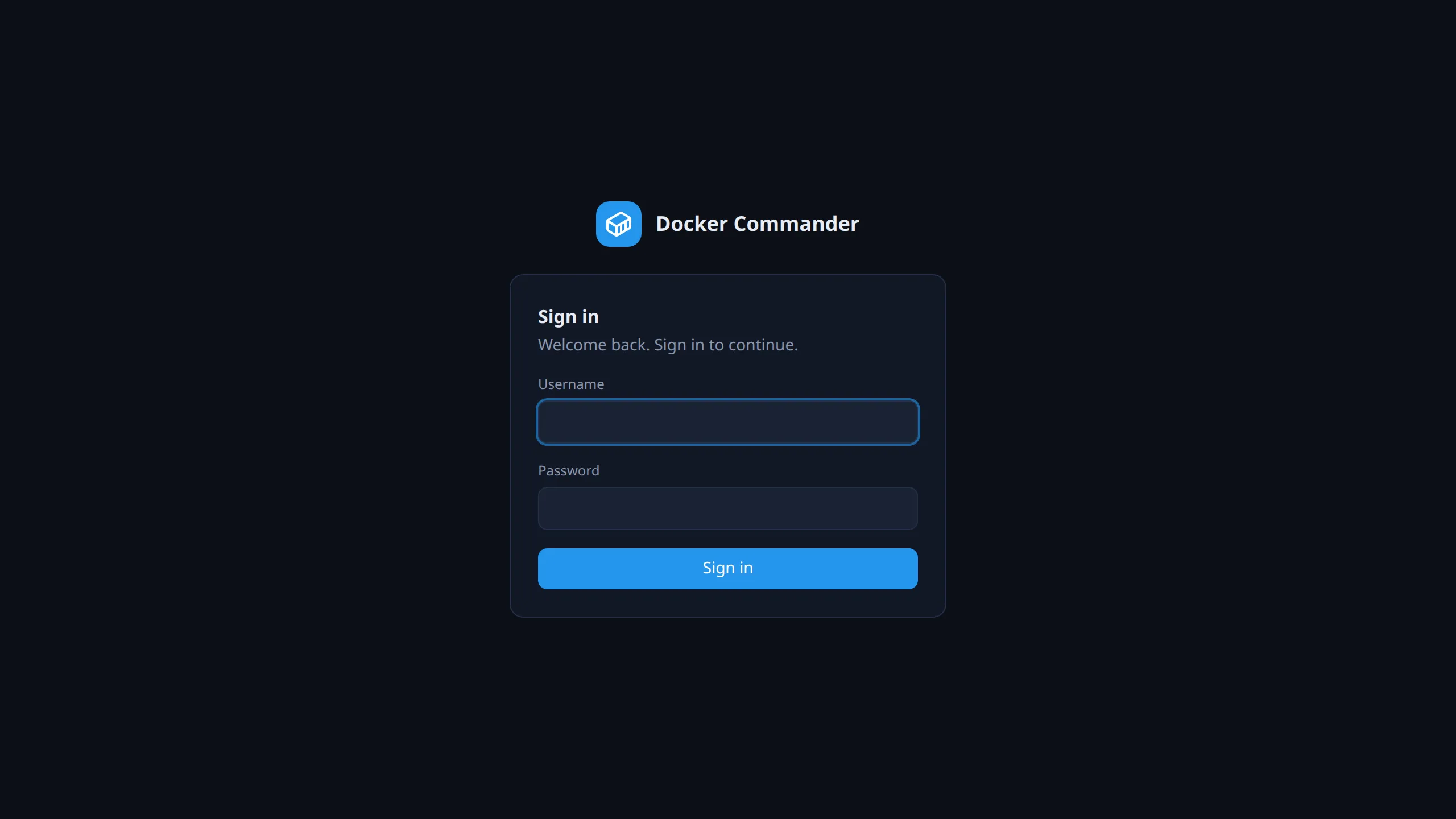
./dockercmd) and open http://127.0.0.1:8470. - Create the admin account. The first account is always an
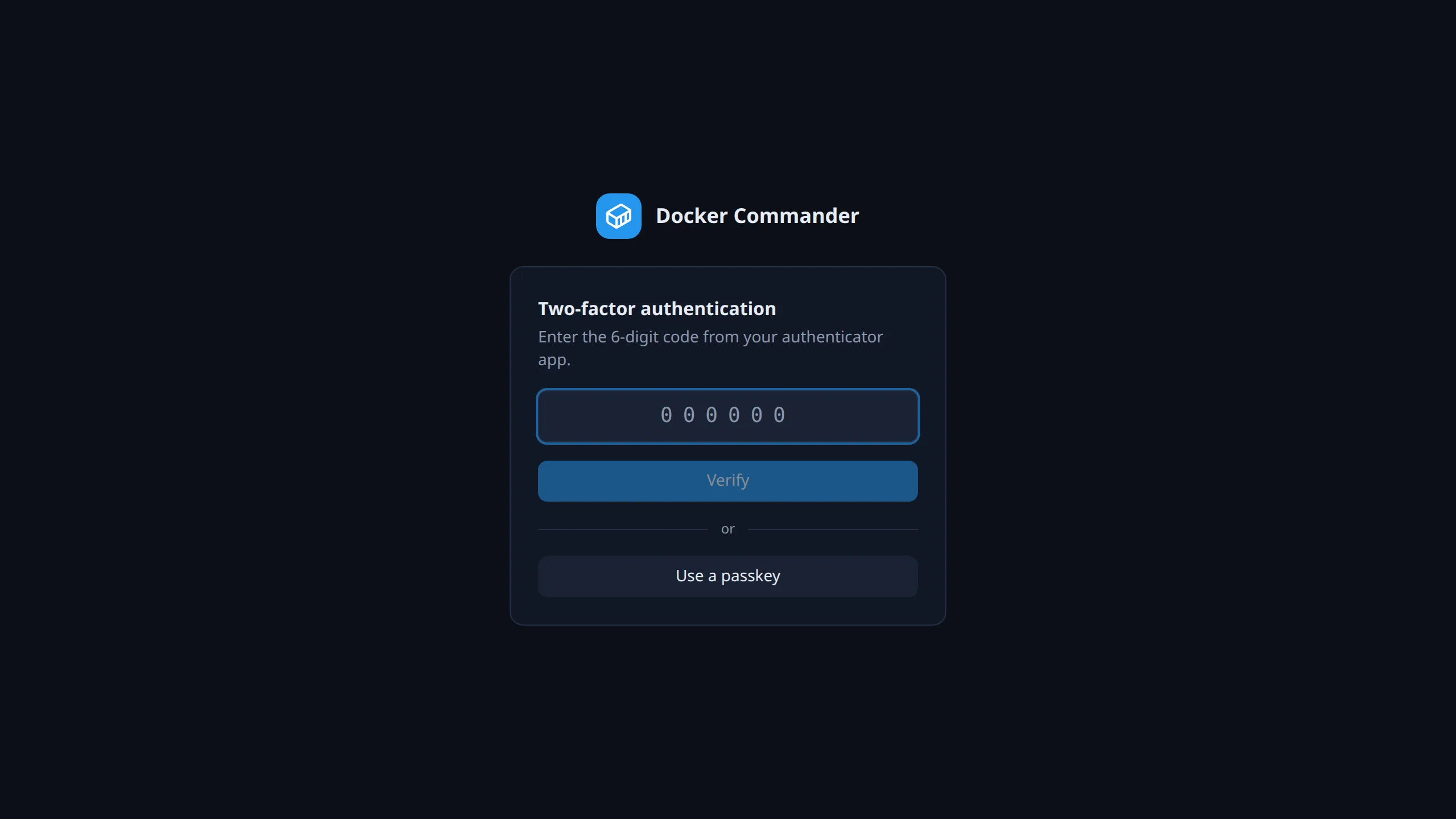
admin. On the same screen, choose Enable now for 2FA or Skip for now. Skipping turns on the localhost 2FA exemption for every account, so sign-ins from the machine itself need only a password. Handy on a local or dev box. - If you enabled 2FA, scan the QR code with an authenticator app (Google Authenticator, Aegis, 1Password…) and enter the 6-digit code to confirm.
From then on you sign in with username, password and the current code.
New accounts that an admin created, and LDAP accounts, have no second factor yet. At their first sign-in they must pair an authenticator app before anything else opens: scan the QR code, or type the secret shown under Or enter this secret manually, then enter a code and click Confirm & enable. The localhost exemption skips this step for sign-ins from the machine itself.
A passkey is the other kind of second factor. You pair it later under Profile → Security. If the account has one, the second step offers it next to the code box. If the account has only a passkey, the code box is not shown, since it could never be filled in. If you turned on passkey sign-in for your account, click Sign in with a passkey under the password form instead of typing a password. The button shows only where the browser and the address support passkeys.
Common tasks
Section titled “Common tasks”Turn 2FA on for localhost later. If you skipped it at setup, an admin switches off the localhost exemption in Settings. Everyone then needs a second factor, also on localhost.
Deploy your first app. Open Projects, click New project, fill in Project name, pick a Template (for example Nginx — static site) and click Create. Then click Deploy in the editor that opens. The running containers show up in Stacks and Containers.
Manage another Docker machine. Add it under Hosts (TCP+TLS or SSH). Once there is more than one host, a host switcher appears at the top of the sidebar.
Get told when something breaks. Set up Alerts with a webhook or email. The server checks around the clock, so nobody needs to keep the UI open.
Give a colleague access. Create an account under Users & roles and grant only the sections they need, read or write.
The layout
Section titled “The layout”- The left sidebar groups pages into Workloads, Storage, Network, Observability and System. What you see depends on your role and permissions.
- The host switcher at the top of the sidebar appears once more than one host is enabled. It switches every page to the selected Docker host.
- The account menu at the bottom left shows who you are and signs you out.
- The Dashboard is the home page: host facts, disk usage and running containers.
- Containers is where you operate workloads: start and stop, open a shell, browse files, read logs.
Security model
Section titled “Security model”- Passwords are hashed with Argon2id. Sessions are
HttpOnlycookies. - A second factor is required for everyone unless an admin enables the localhost exemption. It can be an authenticator app (TOTP) or a passkey. An account may hold several of either, and the last one cannot be removed.
- A passkey that checks a PIN, fingerprint or face can also sign you in on its own, once you turn that on for the account. Your password keeps working. It is your way back if the key is lost, because no admin can reset another account’s second factor. See Your profile.
- Account type is
admin(full access and administration) oruser. Auserreaches only what they are granted: through named roles (a reusable set of sections, each read or write, optionally limited to specific hosts) and/or sections set directly on the account. - Stored secrets (registry, SMTP and LDAP passwords) are encrypted at rest.
See Users & roles and Settings for administration.
Technical notes
Section titled “Technical notes”- Passkeys need a hostname. An IP address cannot be a passkey’s relying
party, so
http://127.0.0.1:8470/does not offer them. Usehttp://localhost:8470/or HTTPS with a domain. Details in Your profile.