Your profile
Your own account: how you sign in, what is signed in as you, and what you can reach. Every signed-in user has this page, whatever their permissions. Open it with the person icon beside Sign out. Other people’s accounts are managed in Users & roles.
Common tasks
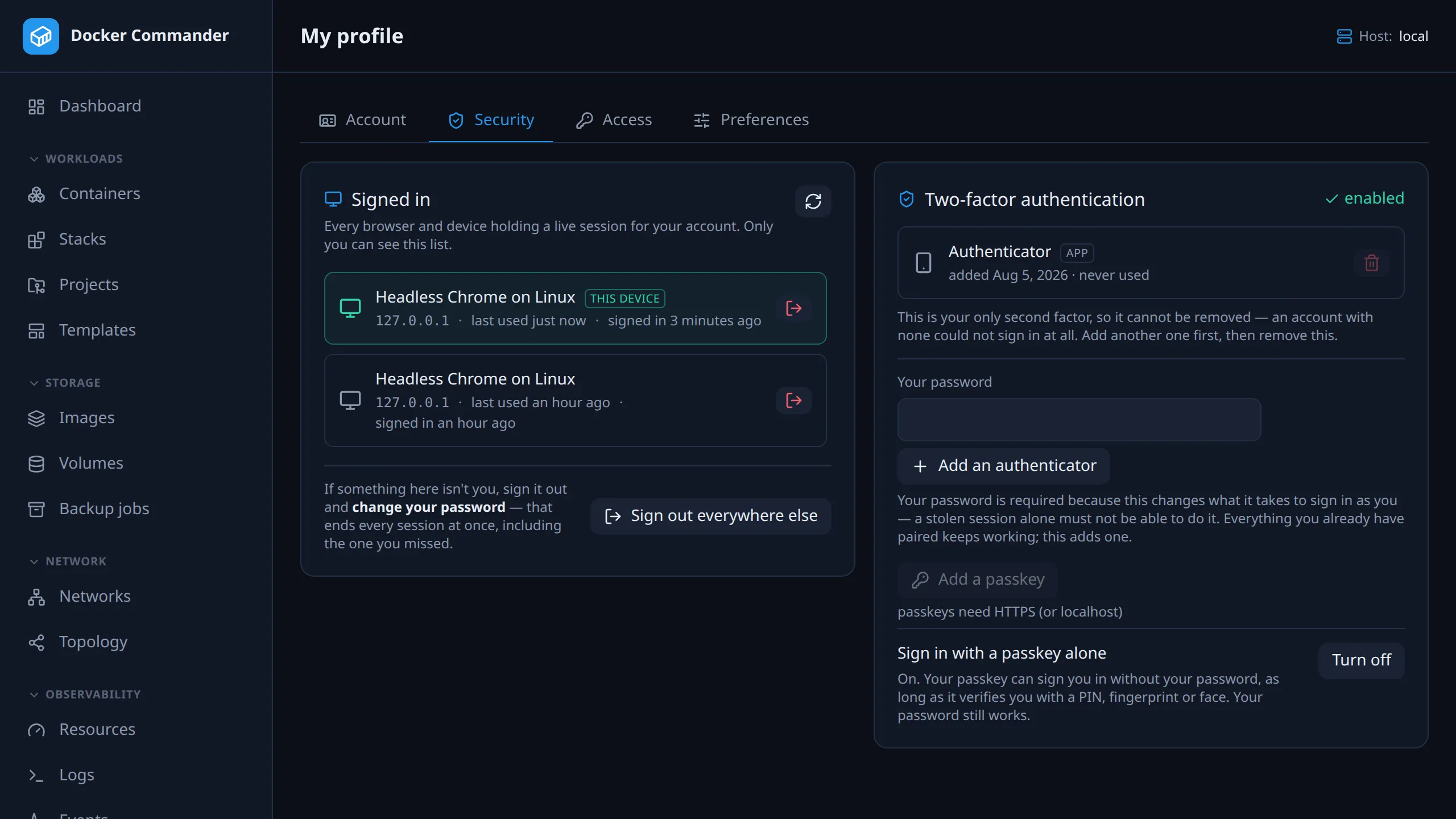
Section titled “Common tasks”Move to a new phone. On Security, enter your password, click Add an authenticator and scan the code with the new phone. Then remove the old entry. Pairing never revokes anything, so the old phone keeps working until you remove it.
Sign out a lost laptop. On Security, find it in the list of sessions and click Sign out, or use Sign out everywhere else. Then change your password on Account: that ends every other session at once, including one you didn’t spot. An LDAP account changes it in the directory instead, which ends no sessions here, so sign the others out first.
Change your password. On Account, in the Password card, enter the Current password, the New password (at least 10 characters) and New password again, then click Change password. Every other session of your account is signed out; this one stays signed in. Only local accounts have this card.
Use a fingerprint or security key instead of codes. Click Add a passkey.
It only works over HTTPS or on localhost, and only under a hostname, not an IP
address (see Passkeys).
Sign in with just the passkey. Turn on Sign in with a passkey alone and confirm with your password. Then use Sign in with a passkey on the sign-in screen. Your password keeps working as the way back in. Local accounts only.
Find out why you can’t see a page. Open Access. It lists each section you can reach, on which hosts, and which grant gave it to you. If the section isn’t there, ask an admin.
Get alert e-mails. Set your Alert e-mail on the Account tab. It only pre-fills the recipient when e-mail is switched on for an alert rule, so you also need such a rule and a working Settings → Email.
| Tab | Shows |
|---|---|
| Account | Username, account type, whether you sign in locally or through LDAP, when the account was created and last used, your password (local accounts) and your alert e-mail. |
| Security | Your authenticators and passkeys, signing in with a passkey alone, and every session signed in as you. |
| Access | Your roles and, per section, what you can do (You can), where (Where) and why (Granted by). |
| Preferences | Whether alerts pop up as a toast while the app is open. |
Authenticators
Section titled “Authenticators”You can pair as many authenticators as you like, up to the account limit: a phone and a tablet, or a new phone before you wipe the old one. Each is listed by a name you choose, with when it was added and when it last produced a code. Adding one leaves the others working. There is no “replace”.
- Pairing and removing ask for your password. Both change what it takes to sign in as you. Otherwise anyone holding one of your sessions could pair their own device, or remove yours one at a time. A first-time setup doesn’t ask, because there is nothing to protect yet. Once you have any second factor, an authenticator app or a passkey, the password field appears and the button reads Add an authenticator (Set up 2FA before that).
- The last one can’t be removed. 2FA is mandatory, so an account with no second factor couldn’t sign in, and no admin can reset it for you. Pair the replacement first.
- Starting a pairing is safe. Nothing changes until you enter a code from the new device, so cancelling leaves everything as it was.
Passkeys
Section titled “Passkeys”A passkey is the other kind of second factor. Add a passkey uses what this device already has: a fingerprint, a face, a PIN or a plugged-in security key. The private key stays with the authenticator: Docker Commander only ever gets signatures. A security key keeps it in hardware; a synced passkey (iCloud Keychain, Google Password Manager) moves it between your devices through that service.
It is stronger than a code in two ways. There is nothing to type, so nothing to read out to someone on the phone. And the signature is bound to this site’s address, so a lookalike page can’t use what it captures.
A passkey counts as a second factor like any other. It is in the same list, is removed the same way, and can’t be the last one you remove. At sign-in you get whatever your account has: the code box, the passkey button, or both.
Where passkeys work.
- They need a secure context. That’s the browser’s rule: HTTPS, or
localhost. See Deployment for TLS. - They need a hostname. An IP address can’t be a passkey’s relying party, so
http://127.0.0.1:8470/won’t offer them, even though it is a secure context. Usehttp://localhost:8470/instead. - The hostname can’t end in a dot (
http://localhost.:8470/). It is the same name, but the WebAuthn library doesn’t accept that form, so it is refused like an IP address. - Where passkeys are unavailable, the button says why instead of failing when you press it.
Use one hostname. A passkey is bound to the name you paired it under, and the
browser only offers it back under that name. Capitalisation doesn’t matter, but a
trailing dot does: dc.example.com. and dc.example.com are different names to
the browser. Pick one spelling and keep it.
Signing in with a passkey alone
Section titled “Signing in with a passkey alone”Off until you turn it on in Profile → Security, which asks for your password.
- It works only when the passkey verifies you with a PIN, fingerprint or face. That is what makes it two factors instead of one. A passkey that only proves possession is refused, with a message saying so.
- If your passkey syncs between devices (iCloud Keychain, Google Password Manager), the PIN or fingerprint can be given on any device it reaches. Your account then also depends on that platform account.
- Your password still works and always will. It is your way back in if the key is lost, since no admin can reset another account’s second factor.
- Only local accounts can turn it on. LDAP accounts don’t see the switch.
Sessions
Section titled “Sessions”Security lists every browser and device signed in as you. Each is named (Firefox on Linux, Safari on iPhone, curl) with the address it last came from, when it was last used and when it signed in. The one you are using is marked this device.
- Any row can be signed out. Signing out the current row signs you out here.
- Sign out everywhere else ends all the others at once.
- If something there isn’t you, sign it out and change your password. Changing it on Account ends every other session.
Only you see this list, for your own account. An admin view of everyone’s sessions would be a record of when each person works and from where.
The address and device name are what the client claims, and the name is our reading of it. Treat them as “does this look like me?”, not as proof. A client we can’t place is shown exactly as it identified itself.
Access
Section titled “Access”What you can reach, computed from your grants: a row per section with what you may do, on which hosts, and which grant said so (your own account, a named role, or both). It answers “why can I see this?” and, more often, “why can’t I?”.
For an admin it says so plainly. Admin is not a role or a grant: it bypasses the permission system, so there is nothing to compute. Every section, read and write, on every host, plus administration.
It reads only your own account. Other people’s permissions are in Users & roles, for admins.
A section an admin has switched off installation-wide disappears from the menu. Its API stays reachable for admins, because admins bypass the permission check. A feature flag is not a permission. The tab says so where it applies.
Preferences
Section titled “Preferences”Stored on the server, not in the browser, so they follow you to another machine.
- Pop up alerts. Turning toasts off changes nothing about the alerts themselves. They are still recorded, still counted in the sidebar badge, and still delivered by webhook and e-mail.
- Your Topology view’s toggles and filters, and list settings such as page size, are saved to your account the same way.
Locked out entirely?
Section titled “Locked out entirely?”If you are the only admin and the password is gone, run
dockercmd --reset-password <user> on the machine the instance runs on.
- It asks for the new password at the terminal and ends every session for that account.
- It leaves the second factor in place. You still need your code or passkey, unless the localhost 2FA exemption is on and you sign in on the machine itself.
- It needs access to the data directory, which already equals being an admin, so it grants nothing that access didn’t.
Limits
Section titled “Limits”| Sessions last | 12 hours by default (-session-ttl), then you are signed out |
| Wrong passwords | 5 per 15 minutes per address, then sign-in is refused for the rest of the window |
| Passkey sign-in attempts | 30 per 5 minutes per address, counted separately so a dismissed prompt can’t lock the password form |
| Authenticators and passkeys | 10 per account, counted together |
- Repeatedly opening and cancelling the passkey prompt eventually asks you to wait a few minutes. Your password has its own budget and is unaffected.
- Wrong passwords when pairing, removing or switching passwordless sign-in are limited per sign-in session. A device that has been fumbling can’t stop you doing the same thing from another one. When the limit is hit, the app says so instead of claiming the password was wrong.
See Limits for the rest.