
Stacks
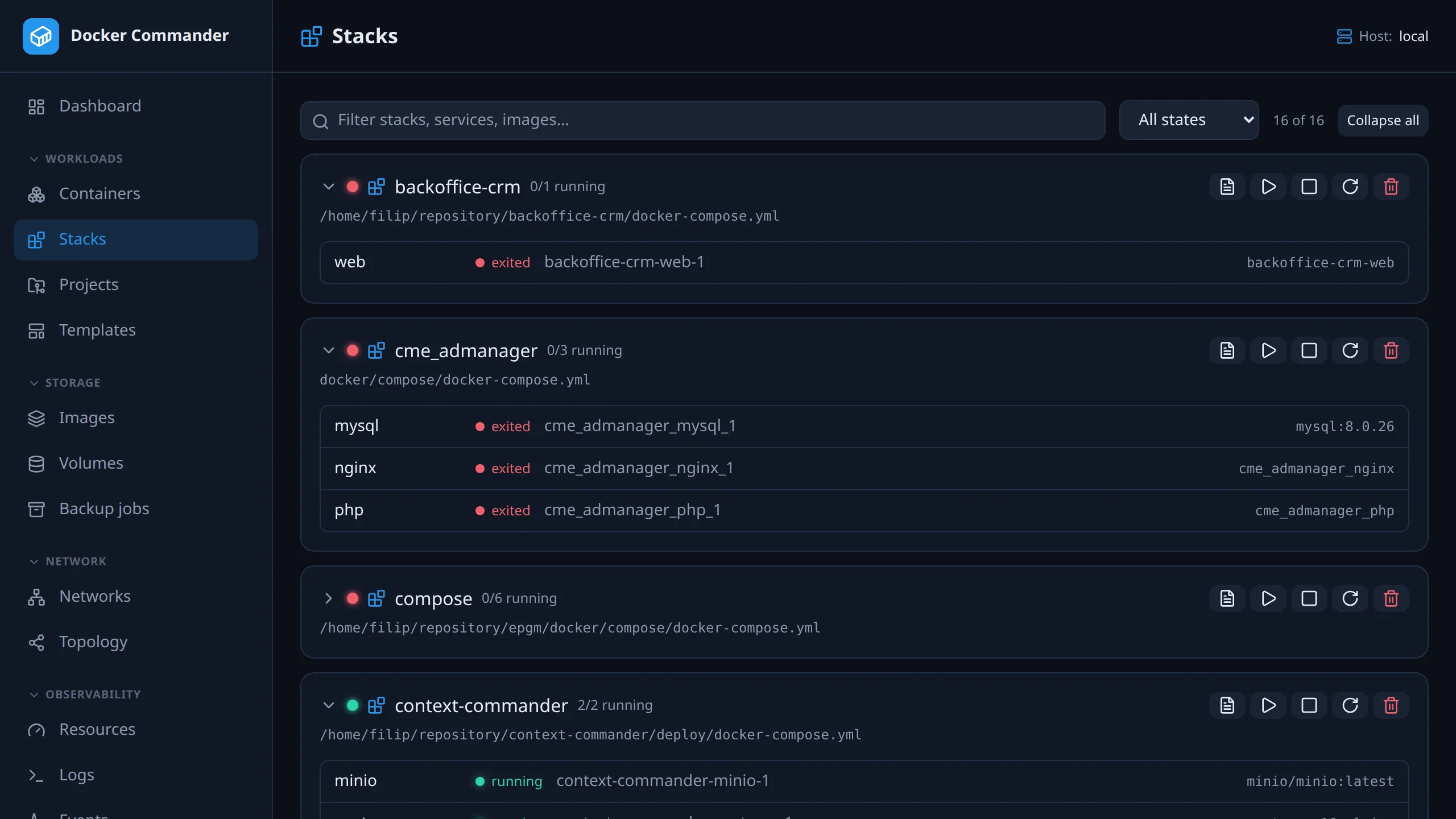
Every Compose stack on the selected host, including stacks started with the
docker compose CLI on the host, not just ones deployed from a
Project. To build or change a stack from Docker Commander, use
Projects.
Common tasks
Section titled “Common tasks”Find a stack with a problem. Set the state filter to Issues. A stack is yellow when only some of its containers run or one of them is unhealthy. Hover a service to see its full status, then click the container name to open its detail page.
Change a stack started from the CLI. Click the file icon (View compose file) or the file path under the stack name, edit the file, click Save, then Redeploy. Redeploy uses the saved file only, so save first. Containers whose definition changed are recreated, which means a brief interruption.
Undo a bad edit. Before saving, Revert drops your unsaved edits. After
saving, the previous version is kept beside the file as <name>.dc-prev. Copy
it back on the host, then Redeploy.
Drop a service from a stack. Delete it from the compose file and redeploy. Its container keeps running, because redeploy does not remove orphans. Stop or remove it in Containers.
Tear a stack down. Click the trash icon (Remove stack) and confirm. It
removes the containers and the stack’s Compose networks but keeps named volumes,
like docker compose down.
Browsing
Section titled “Browsing”Each stack card shows its services and a status light: green when all containers run, yellow when only some run or one is unhealthy, red when stopped.
- Filter by name, service or image, and by state (running, issues, stopped). The filter is remembered per user.
- Collapse or expand a stack, or all at once, to keep a long list readable.
- Hover a service to see its state, image, full status and published ports. Click a container name to open its detail page.
- A stack created from a Project has a folder icon linking to its editor. A Project links back with Open in Stacks, which filters to and expands that stack.
Actions (whole stack)
Section titled “Actions (whole stack)”| Action | What it does |
|---|---|
| Start / Stop / Restart | Applied to every container in the stack. |
| Remove stack (trash icon) | Force-removes the stack’s containers and its Compose networks. Named volumes are kept. |
| View compose file (file icon) | Reads the stack’s compose.yml from the host. Copy or download it from the viewer. |
The compose file is read directly for the local daemon and over SSH for SSH hosts. On plain-TCP hosts it can’t be opened at all; the viewer says why.
Editing and redeploying a CLI stack
Section titled “Editing and redeploying a CLI stack”For a stack the app didn’t create, the viewer is also an editor. Save writes the file back to the host. Redeploy applies it. They are separate steps, so you can leave a half-finished edit on disk without restarting anything. Closing the editor with unsaved edits asks you to confirm (Discard).
- The file is edited where it already lives. It is not copied into a managed
Project. Redeploy runs
docker compose up -d --buildin the stack’s original working directory, exactly where it ran the first time. - Requires the
containerssection with write. Read-only grants can view the file but not save or redeploy. - SSH hosts run
docker composeon the host itself. Managed Projects differ: there the CLI runs on the Docker Commander machine and only tunnels the API. So the host needs the Compose plugin, and the SSH user needs write access to the compose file. It also pulls private images with that host’s owndocker login: credentials stored under Registries aren’t copied to the host, and the redeploy output says so. On the local daemon a redeploy uses them. - A Project’s stack is read-only here. For a stack that a Project deploys on this host, the viewer shows the file with “this stack belongs to the project …; edit and deploy it in Projects”, and save and redeploy are refused. A change made here would skip the project’s revision history and policy check, and its next deploy would overwrite it.
- A stack whose containers carry no
working_dirlabel stays read-only, and so does one whose compose file sits outside that directory. The viewer says why. --remove-orphansis not passed. Delete a service from the file and its container keeps running. Compose warns about it in the output. Removing one stays an explicit act.
Managing one stack from both Docker Commander and the host’s docker compose
CLI can drift. Manage a given stack from one place.
How stacks are found
Section titled “How stacks are found”A stack is any group of containers sharing the com.docker.compose.project
label, which docker compose sets on everything it creates. The compose file’s
path comes from the com.docker.compose.project.config_files label.
Why the file stays in place
Section titled “Why the file stays in place”A compose file’s relative paths (bind mounts, env_file, build.context,
include) resolve against the project’s working directory. Moving the file would
silently repoint every one of them. ./nginx.conf would stop meaning your config
and start meaning whatever sits beside the copy. Usually that is nothing, which
deploys an empty file instead of failing loudly.
Why --build
Section titled “Why --build”up builds a service only when its image is missing. Without --build, a
stack with a build: section would keep running the image from its first deploy,
however much its Dockerfile or context changed on the host, while reporting
nothing worse than Container Running. It is a no-op for services that only pull
an image.
Safety rails
Section titled “Safety rails”- Validated first. The new file is checked with
docker compose configbefore anything is replaced. A file Compose rejects never reaches the running stack’s definition. - Previous version kept beside the file as
<name>.dc-prev. - Atomic replace. The new file is moved into place with a rename, so an interrupted write can’t leave a half-file where the stack’s definition used to be. The original file’s permissions are preserved.
- Inside the working directory. The compose file must sit inside the stack’s
working directory, for saving and for redeploying. Paths that aren’t
.ymlor.yamlare refused too. The path comes from a container label, so from whoever started the container rather than from you, and this rule bounds what that label can steer. To be precise: setting those labels needs direct Docker API access, which is already root-equivalent on that host. So this is defence in depth, not a barrier against anything reachable through Docker Commander itself. - No writes through symlinks. The previous version is written with a rename,
never a plain write. A plain write follows a symlink sitting at the destination,
so anyone who could create files in the stack’s directory could have pointed
compose.yml.dc-prevat, say,/etc/cron.d/and had the app write through it. The same applies on SSH hosts, where the temporary files come frommktemp.