
Images
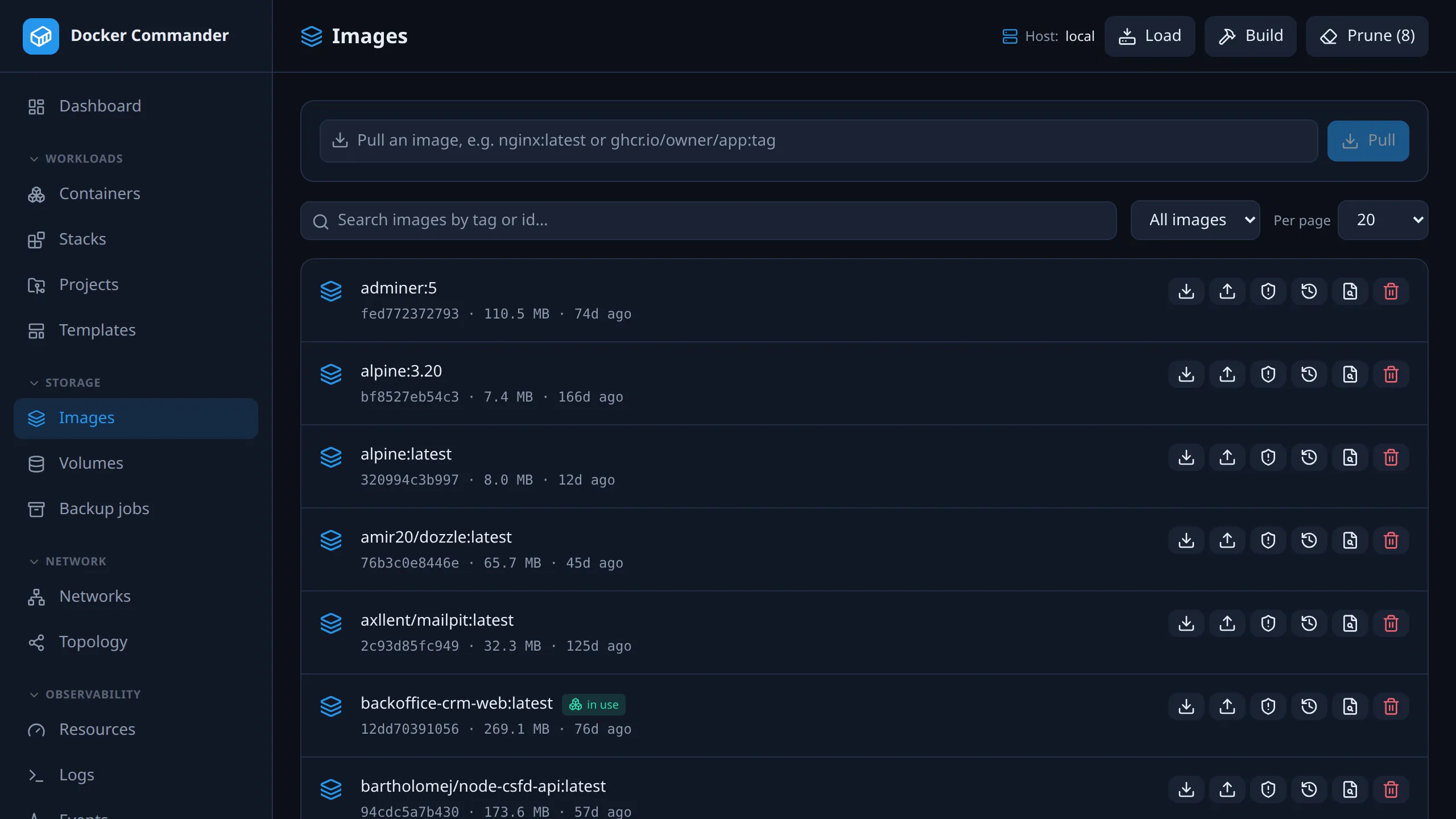
The images on the selected host. Pull, build, scan, push and move them between machines. To see which images take the most disk, use Resources → Disk.
Common tasks
Section titled “Common tasks”Get a newer version of an image. Pull the same reference again, for example
nginx:latest. Running containers keep the old image until their stack or
project is redeployed or they are recreated.
Free disk space. Click Prune to remove dangling (untagged) images. For tagged images nobody uses, set the filter to Unused and remove them one by one.
Check an image for vulnerabilities. Click Scan (shield icon). Results are not stored, so scan again later to catch newly published CVEs.
Accept a CVE you have reviewed. In the scan results, tick the finding and click Ignore selected. It is ignored by CVE id, so it disappears from every image’s scan, not just this one. Show ignored brings it back with an Un-ignore button.
Move an image to a machine without a registry. Save it here, then Load the tar on the other host. Tags are preserved.
Push to a private registry. Add its credentials in
Registries first. Then Push with a registry-qualified
target. A build whose FROM is a private image uses the same credentials.
The list
Section titled “The list”Each image shows its tags, short id, size and age, with badges for in use (referenced by a container) and dangling (untagged). Filter by In use, Unused or All images, search by tag or id, and paginate. In use is checked against existing containers, so you know before removing. Use force only when you’re sure.
| Row action | What it does |
|---|---|
| Save | Downloads the image as a tar. |
| Push | Pushes to a registry. |
| Scan | Vulnerability scan with Trivy. |
| History | The image’s layers. |
| Inspect | Docker’s raw JSON. |
| Remove | Deletes the image. If the daemon refuses, for example because it is in use, a Force remove button appears. |
Header: Prune removes dangling images. Build and Load open dialogs.
Vulnerability scanning
Section titled “Vulnerability scanning”Scan runs Trivy against the image on the selected host’s daemon. It shows a count per severity (critical, high, medium, low, unknown) and a table of CVEs. Each row has the affected package, the installed version and the version that fixes it, linked to the advisory. Scans run live and aren’t stored.
Trivy is an optional tool that must be installed on the host running Docker
Commander, for example apt install trivy (see trivy.dev). If it’s missing, the
scan dialog says so. The first scan also downloads Trivy’s vulnerability
database, so it takes longer than later ones.
Type a reference (nginx:latest, ghcr.io/owner/app:tag) and pull. Progress
streams per layer over a WebSocket. Private images use the matching
credentials from Registries.
Upload a tar of your build context, the directory containing the Dockerfile.
Set one or more tags, an optional Dockerfile path, build args (one
KEY=VALUE per line), and No cache to rebuild every layer. The daemon’s
build output streams live.
A private base image (FROM ghcr.io/…) is pulled with its credential from
Registries. Docker Commander reads the Dockerfile first and
sends the target host only the credentials of the registries it pulls from:
every FROM and COPY --from=<image>, with ARG values and build args filled
in. A reference whose registry can’t be told (a variable with no value) gets no
credential, and the build output says so, as it does for a stored credential
that can’t be decrypted. The context may be up to 2 GiB.
Build args reach the daemon as --build-arg and can be recorded in the image’s
history, so they are the wrong place for secrets.
Enter a registry-qualified target, for example
registry.example.com/team/app:tag. The image is tagged to that reference if
needed, then pushed with the credentials that Registries has for
the target’s host.
Transfer (save / load / import)
Section titled “Transfer (save / load / import)”| Action | What it does |
|---|---|
| Save | Downloads one image as a docker save tar. |
| Load | Uploads a docker save archive to restore images. Tags are preserved. |
| Import | The Import mode of the Load dialog. Uploads a filesystem tarball and tags it with the Target reference you enter. |
Container filesystems are exported from the container detail.
Permissions
Section titled “Permissions”Pull, push, scan and Save need write access to Images. Scan only reads, but it starts a heavy process and contacts outside servers, so a read-only account can’t launch it. Save hands over the image’s full contents, which read access doesn’t cover, so its button isn’t shown without write. Bulk pull also needs access to Containers.