
Resources
Observability → Resources shows exact, sortable numbers: what each running container and stack uses, who moves the most network traffic, and what takes space on disk. For shares and summaries, use the Dashboard.
There are four tabs: Containers, Network, Stacks and Disk. Each covers the host selected in the sidebar switcher.
Common tasks
Section titled “Common tasks”Which container eats the CPU? On Containers, click the CPU header. Numeric columns sort largest first. Click the name to open its detail page and check the history chart.
Who is flooding the network? Open Network, choose Last 15 min or Last hour, and set Metric to Sent or Received. The top row is your answer. If you suspect a container that isn’t listed, type its name in the filter.
Which stack uses the most memory? On Stacks, the default sort is Memory. Expand the row to see which member container is responsible.
What would a prune free? Open Disk and read Reclaimable. On the Images or Volumes table, set the filter next to the search box to Unused only to see what is unused, then prune from Images or Volumes. Disk only reports and deletes nothing.
How fresh the numbers are
Section titled “How fresh the numbers are”| Tab | Updates |
|---|---|
| Containers, Stacks | The page re-reads the monitor’s snapshot every 5 s; the header shows Updated hh:mm:ss · refreshes every 5 s. The snapshot itself is re-sampled about every 15 s (DC_METRICS_INTERVAL, see Deployment). |
| Network | Recomputed from stored history every 15 s. |
| Disk | Cached, refreshed at most once a minute. |
Because the snapshot is slower than the page, two refreshes can show the same numbers. If a refresh fails, the last good table stays and the error shows above it. Only Containers and Stacks poll the snapshot.
Containers
Section titled “Containers”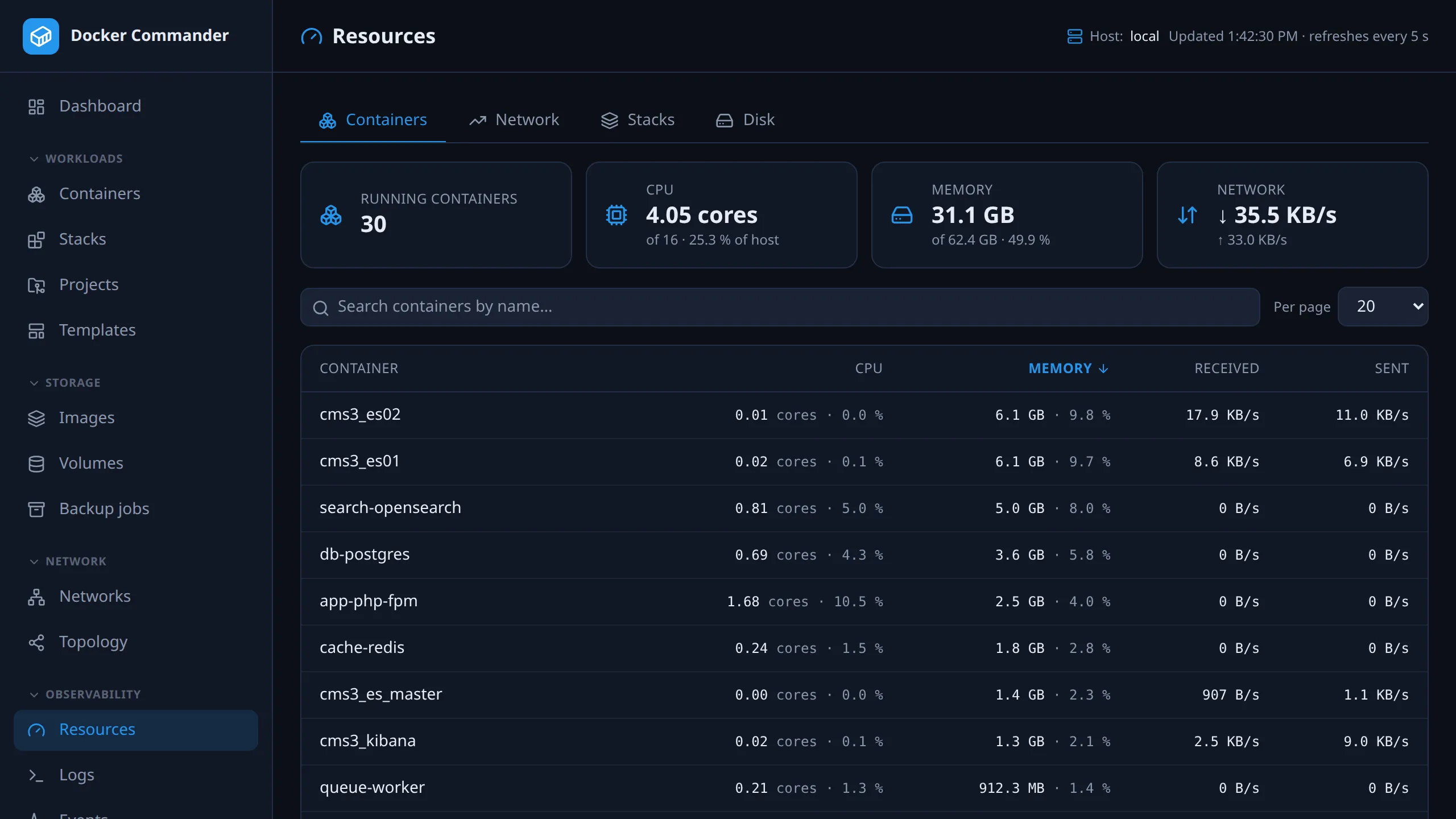
Four cards summarise the host: Running containers, CPU (cores in use, of how many, and % of the host), Memory (bytes in use, of total RAM, and %) and Network (received and sent, summed over running containers).
| Column | Meaning |
|---|---|
| CPU | Cores in use, and the % of the host (100% = every core) |
| Memory | Bytes in use, and the % of the host’s RAM |
| Received / Sent | Bytes per second, from the last two samples |
- Click a header to sort, click again to flip. The default is Memory, largest first. Ties sort by name.
- Search filters by name. Per page is 10, 20, 50 or 100. Both are remembered.
- A container that just started or was recreated shows
0 B/suntil it has two samples.
Network
Section titled “Network”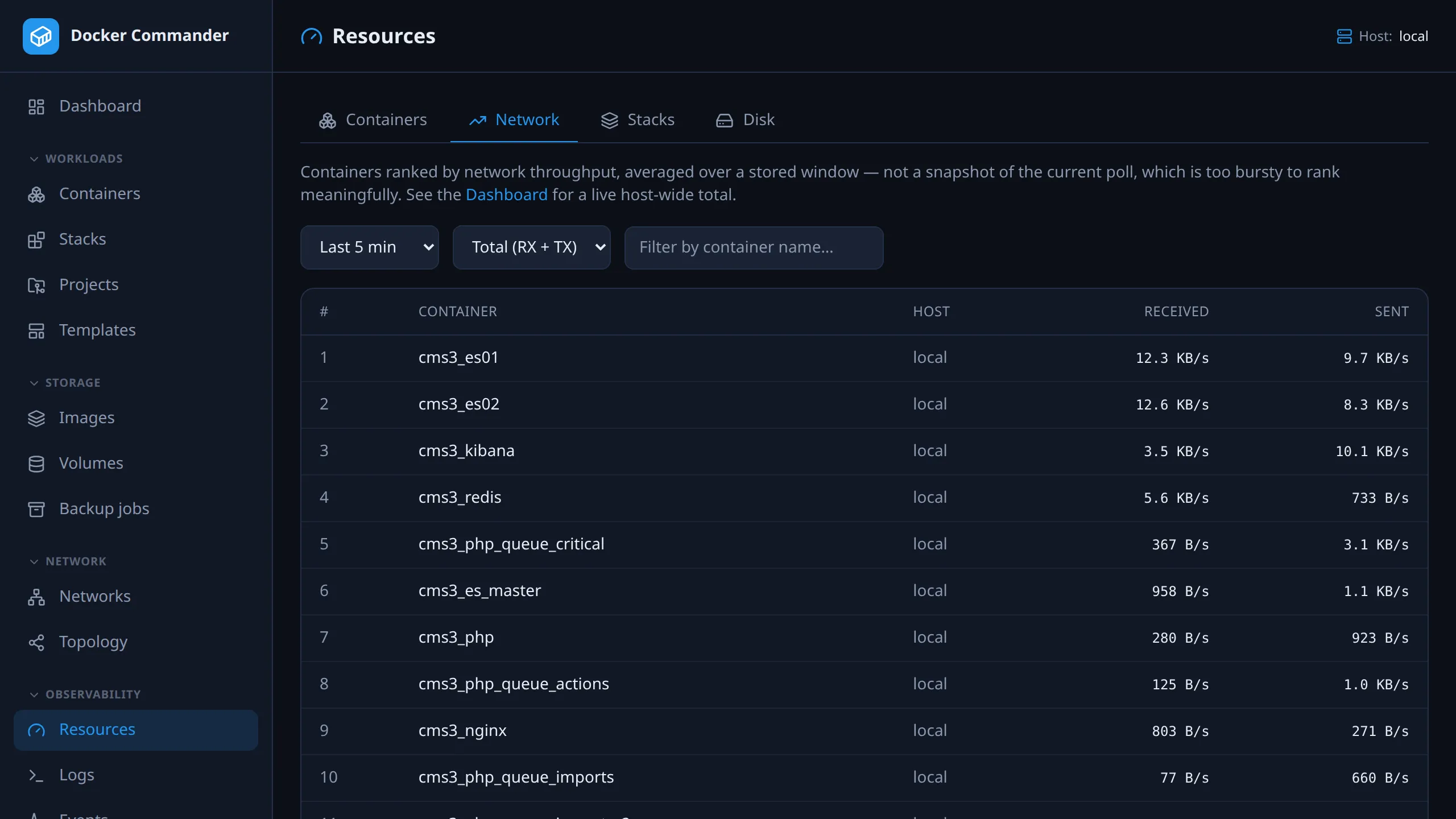
Containers ranked by network throughput over a window.
- Window: Last 5 min (default), Last 15 min or Last hour.
- Metric: Total (RX + TX) (default), Received or Sent. It sets the order. Both columns are always shown.
- Filter by container name applies before ranking, so it finds containers outside the top list.
Rows show rank and Host and link to the container. The list stops at 50, with a note Showing 50 of N — narrow the filter to find one outside this list.
The figure is an average rate over the window, not a current sample and not a total. Docker only gives counters that grow from container start. The rate is the sum of every increase between consecutive stored samples in the window, divided by the time from the first sample to the last. A step where the counter drops (a restart reset it) adds nothing, so traffic on both sides of a restart still counts.
- A container needs at least two stored samples in the window, or it is left out. If none qualify, the tab says Not enough history yet. Wait a few minutes or pick a longer window.
- Only running containers are ranked.
- A container on several networks has all its interfaces summed. Docker doesn’t say which interface belongs to which network.
- Traffic between two containers counts twice: TX for one, RX for the other.
The Dashboard’s Top talkers panel is the top 10 of Last 5 min / Total. View all → opens this tab.
Stacks
Section titled “Stacks”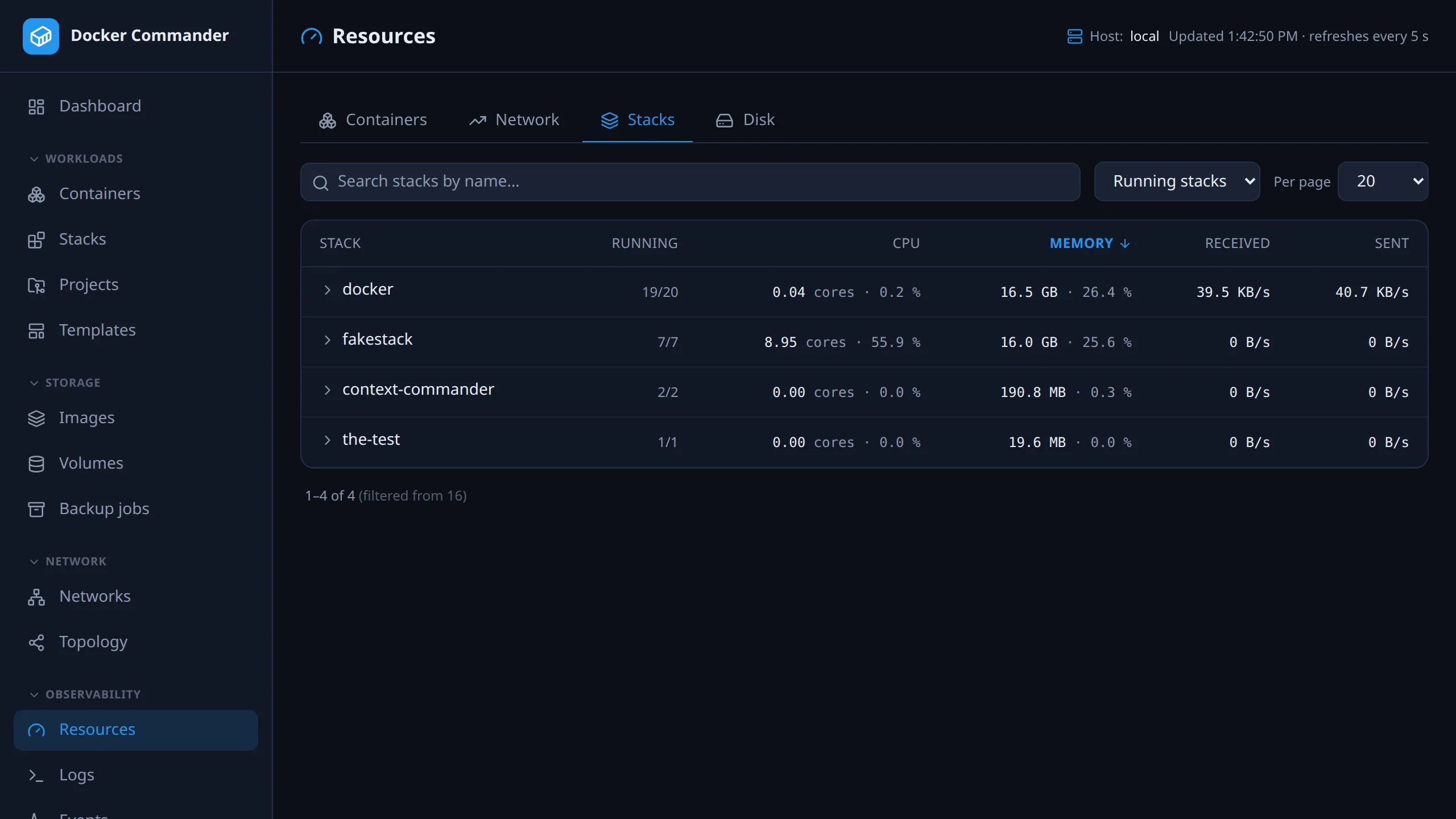
Each Compose stack’s CPU, memory and network: the sum of its running containers. Running shows running/total containers.
Click a row to see the member containers, largest memory first, each linking to its detail page. Stopped containers add nothing. A stack with nothing running says No running containers.
The filter starts on Running stacks and then remembers your last choice. All stacks includes stopped ones. Sorting, search and paging work as on Containers. This tab also needs the Containers section (see Access).
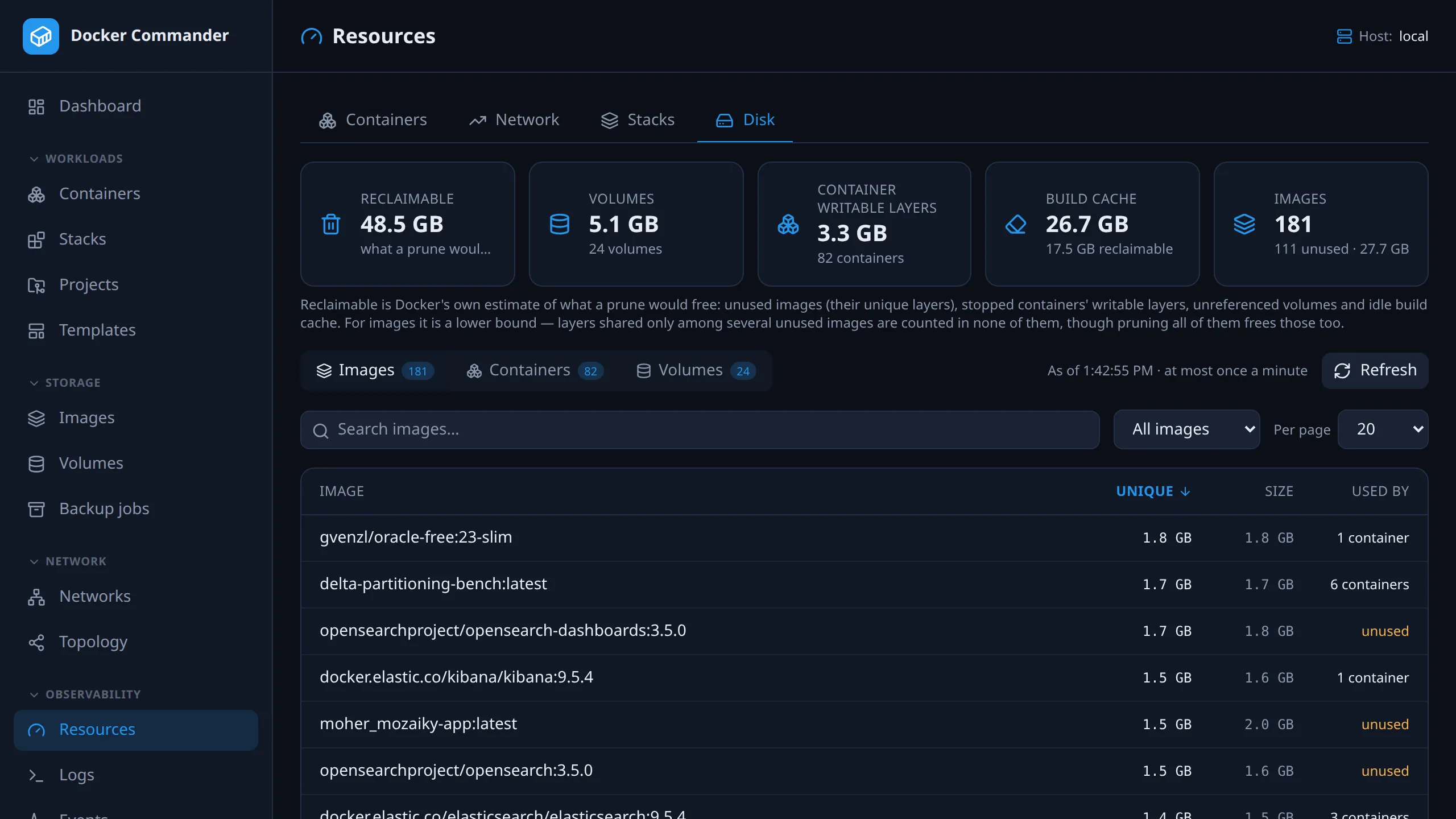
What takes space on the host, largest first, from the daemon’s
docker system df -v.
| Card | Shows |
|---|---|
| Reclaimable | Docker’s estimate of what a prune would free: unused images (their unique layers), stopped containers’ writable layers, unreferenced volumes and idle build cache. |
| Volumes | Total size of volumes with a known size, the count, and how many are unknown. |
| Container writable layers | Data containers wrote on top of their images. |
| Build cache | Size and reclaimable part. Records the daemon marks shared are left out of both. |
| Images | Count, how many are unused, and reclaimable bytes. No total size, because shared layers would be counted many times. |
Below the cards, switch between three tables. Each has search, a page size and sortable headers.
| Table | Columns | Filter | Default sort |
|---|---|---|---|
| Images | Name (tags, or short id marked untagged), Unique, Size, Used by | Unused only | Unique |
| Containers | Name (with compose project), state, Writable layer, Total | Stopped only | Writable layer |
| Volumes | Name (with compose project), driver, Size, Used by | Unused only | Size |
- Size is the whole image, including shared layers. Unique is what deleting it would free.
- Total is the container’s writable layer plus its image.
- Used by is the number of containers using it, or unused (highlighted). If it can’t be determined it shows a dash, and the item is not treated as unused.
- Unknown sizes show as unknown, not
0. This happens with non-local volume drivers and with images whose shared size wasn’t computed. Unknown sorts last in either direction and is left out of the card totals. - As of hh:mm:ss shows when the report was made. Refresh recomputes it unless it is under about 5 seconds old. The first read on a big host can take a few seconds.
Access
Section titled “Access”The page and the /api/stats/* endpoints belong to the dashboard section,
like the Dashboard. Read access is enough. Without it the entry
is hidden and the API refuses. The Stacks tab also needs Containers.
Every read is checked against the host it names, so a role limited to specific hosts sees numbers only for those hosts. An admin sees all. A section disabled app-wide hides the page for everyone.
Technical notes
Section titled “Technical notes”- The tab is in the URL as
?tab=(for example/resources?tab=network). A missing or unknown tab opens Containers. - Reclaimable for images is a lower bound. Layers shared only among several unused images count toward none of them, although pruning all of them frees those too.
- The disk report is cached per host for about a minute, and the page re-reads it every minute while open.